

How to export your data
Soon your Collections data will only be stored for one (1) year. It is advised to export this data for your records.
Data will only be available for one (1) year for each of the following categories:
- Documents historical changes
- Accounts historical changes
- Workspace
Exporting your data
-
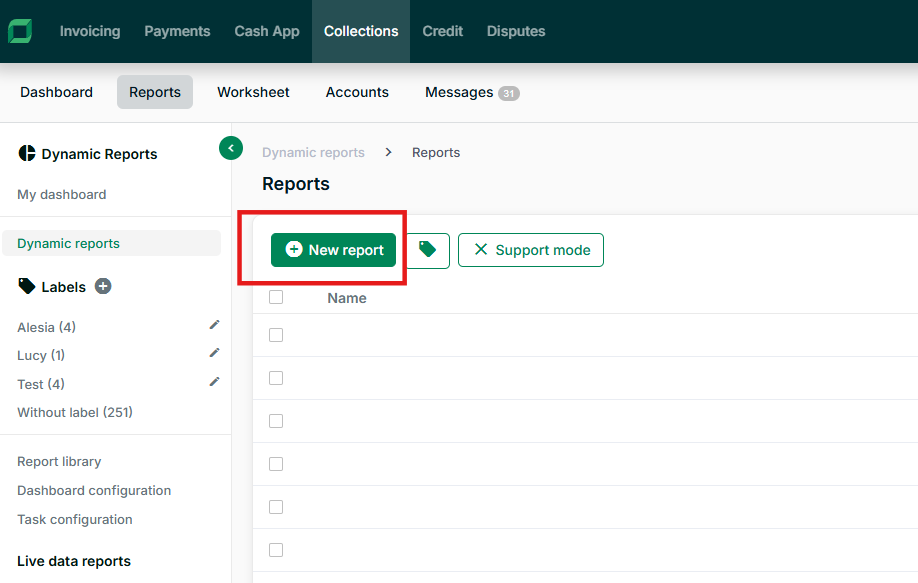
Navigate to Reports in collections and Create a new report.
-
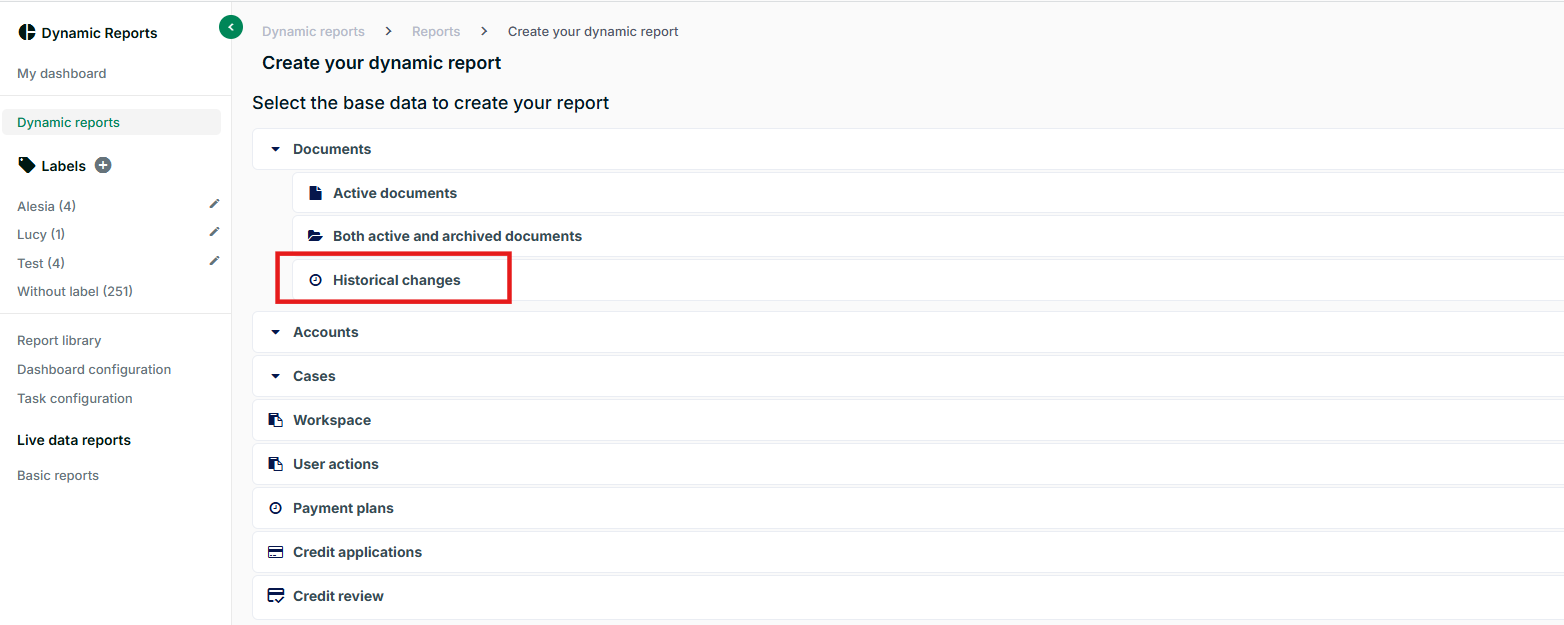
Open the category for Historical changes of the documents:
-
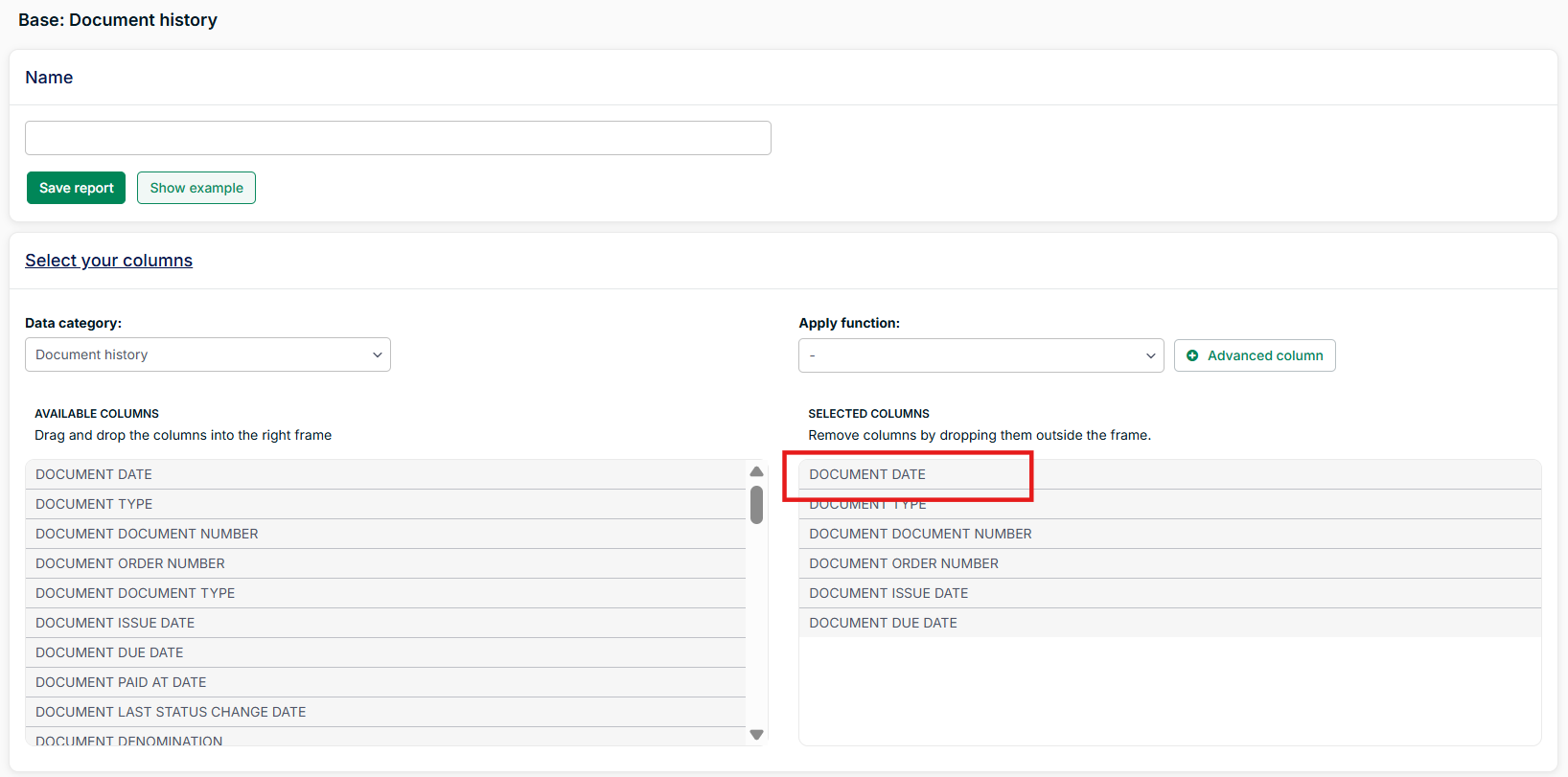
Add the columns with data you would like to export from this data category.
IMPORTANTAdd the column document date as it denotes the logging date with the status of that document at that time. You will want to use this document to filter. When exporting historical changes on accounts use the column account date, and for the workspace use the column workspace log date.
-
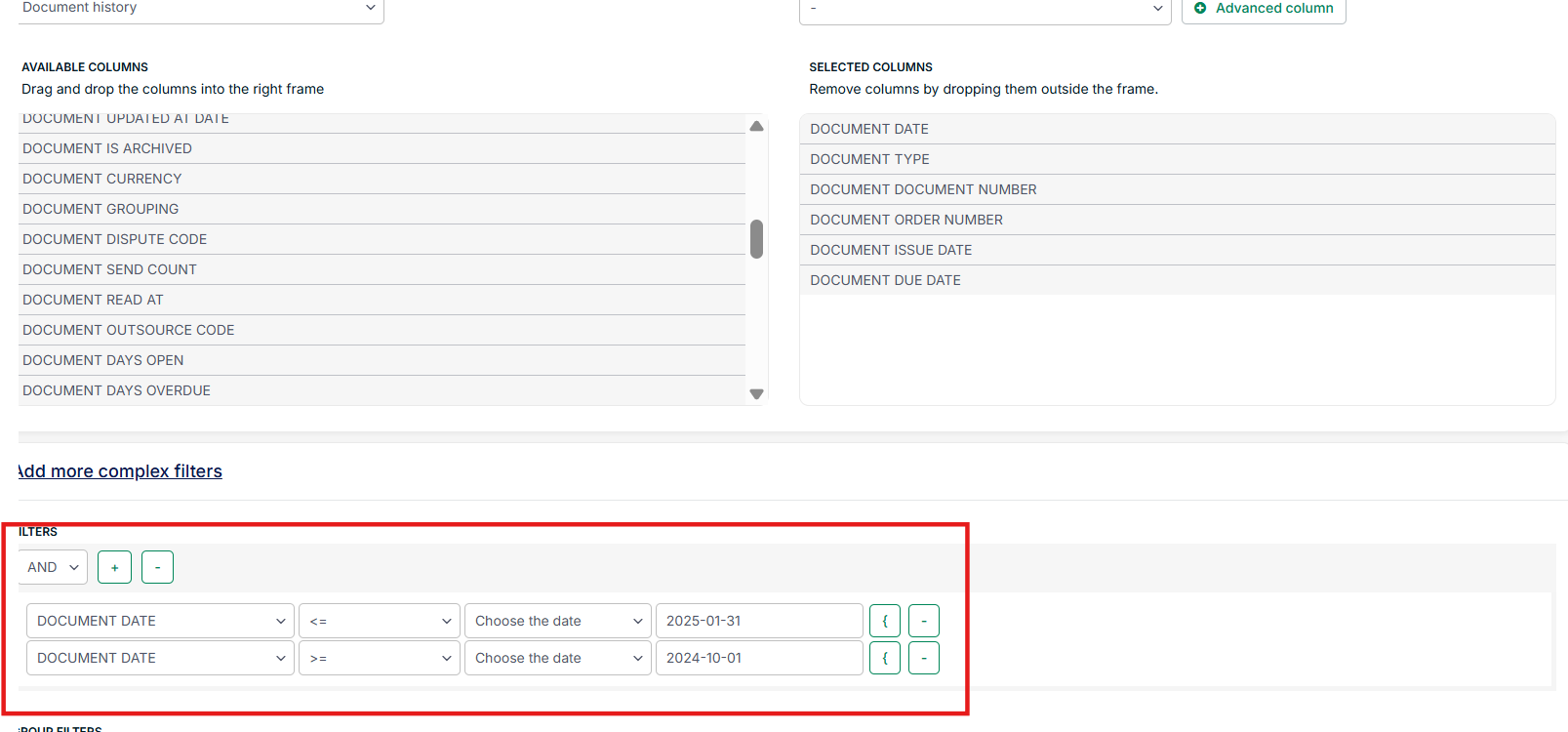
Filter on the date period to export.
In the example below, data between October 1, 2024 and January 31, 2025 will be exported.
-
Name the report and Save.
-
Navigate to the report and select the download options.
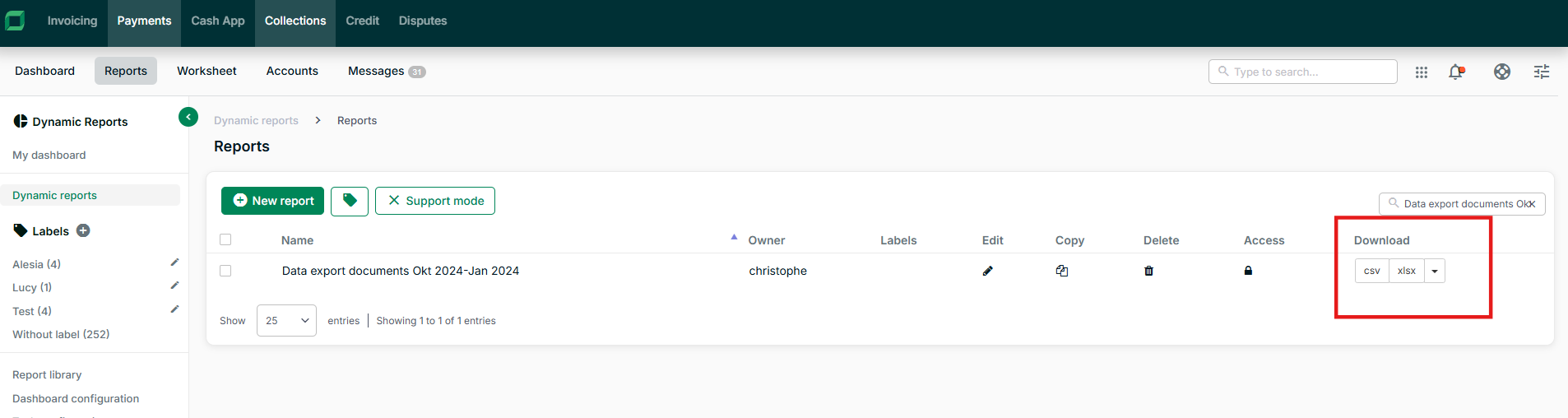
-
Repeat steps 4 - 6 for additional time periods if needed.
-
Repeat steps 1 - 7 for other data categories that need exported.
NOTEThe logging tables may contain a lot of data. It is advised to export in multiple stages.
In the example above, there is a line in the report for each active document on that specific day. That means if you have on average 10,000 active documents per day, you will have 10,000 lines in the report for each document date. If you look at a period of 30 days that would mean a report of 300,000 lines.