

Configure account hierarchy
Create account hierarchies to manage accounts that roll up to a parent. With an account hierarchy, you can create portfolio-spanning procedures, escalate payment reminders to the parent account, and receive comprehensive account statements.
Before You Begin
You must be sending Billtrust your collections data in XML format.
Configure Hierarchy Fields
Populate the following fields in your data file to establish parent-child account relationships:
is_parent_account - designates the parent account. Ensure only one account is designated as the parent.
- Parent: <is_parent_account>1</is_parent_account>
- Child: <is_parent_account>0</is_parent_account>
parent_account_number - must be the same value for all parent and child accounts. Typically the reference number of the parent account.
- Example: <parent_account_number>123-45678</parent_account_number>
When these fields are correctly populated, parent and child accounts are grouped together in an account hierarchy.
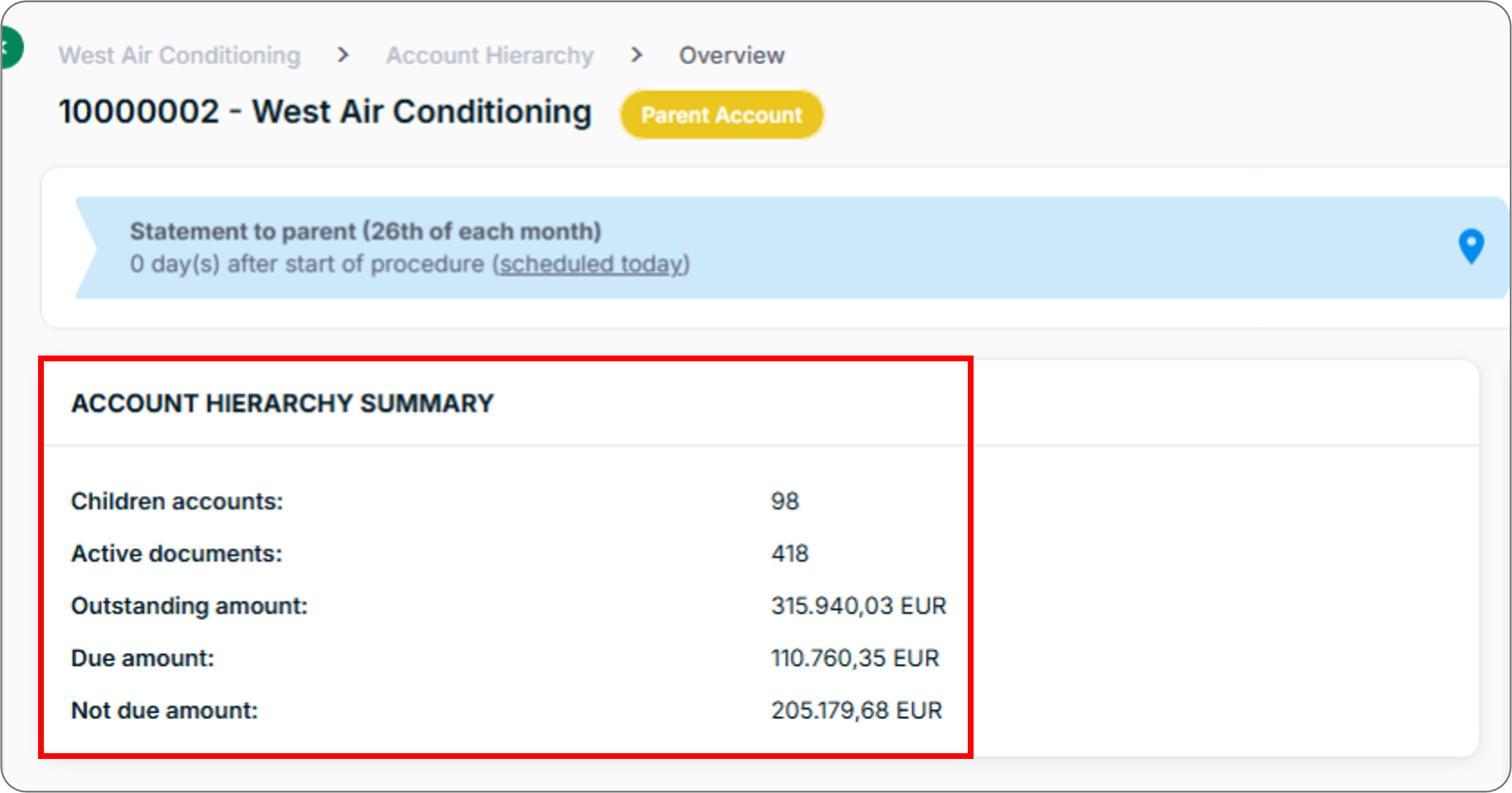
Account Hierarchy Summary
A summary widget on the account record shows the number of child accounts in your portfolio, the number of active documents, the outstanding amount across all accounts, and due and not-due amounts.
Create Portfolio-Wide Procedures
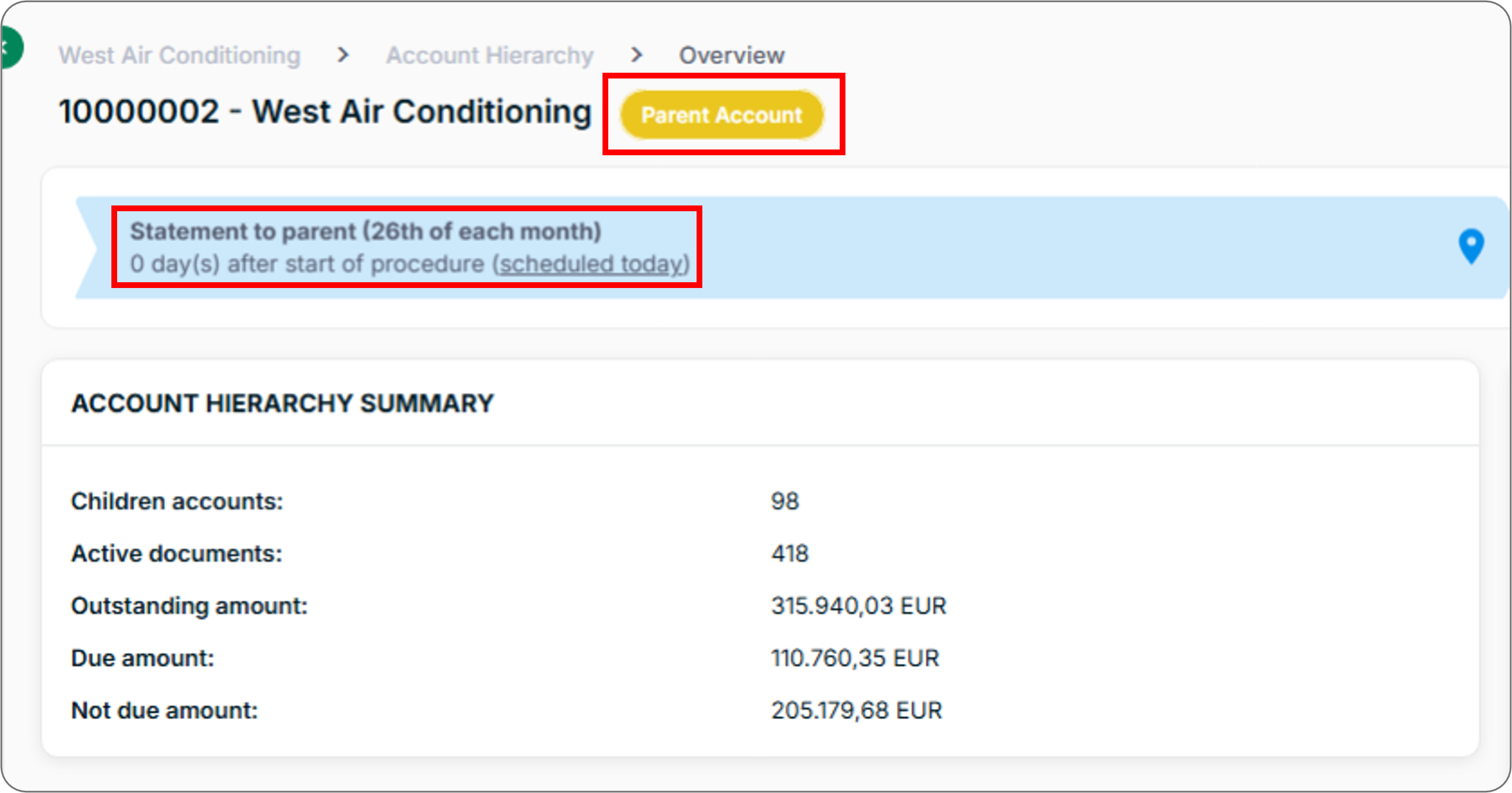
Procedures executed at the level of an account hierarchy include the parent account and all child accounts - compared to account-level procedures which apply to a single account only. Account hierarchy procedures are labelled as such on the account record.
See Create Procedures for instructions on creating hierarchical procedures.
Escalate Reminders to the Parent Account
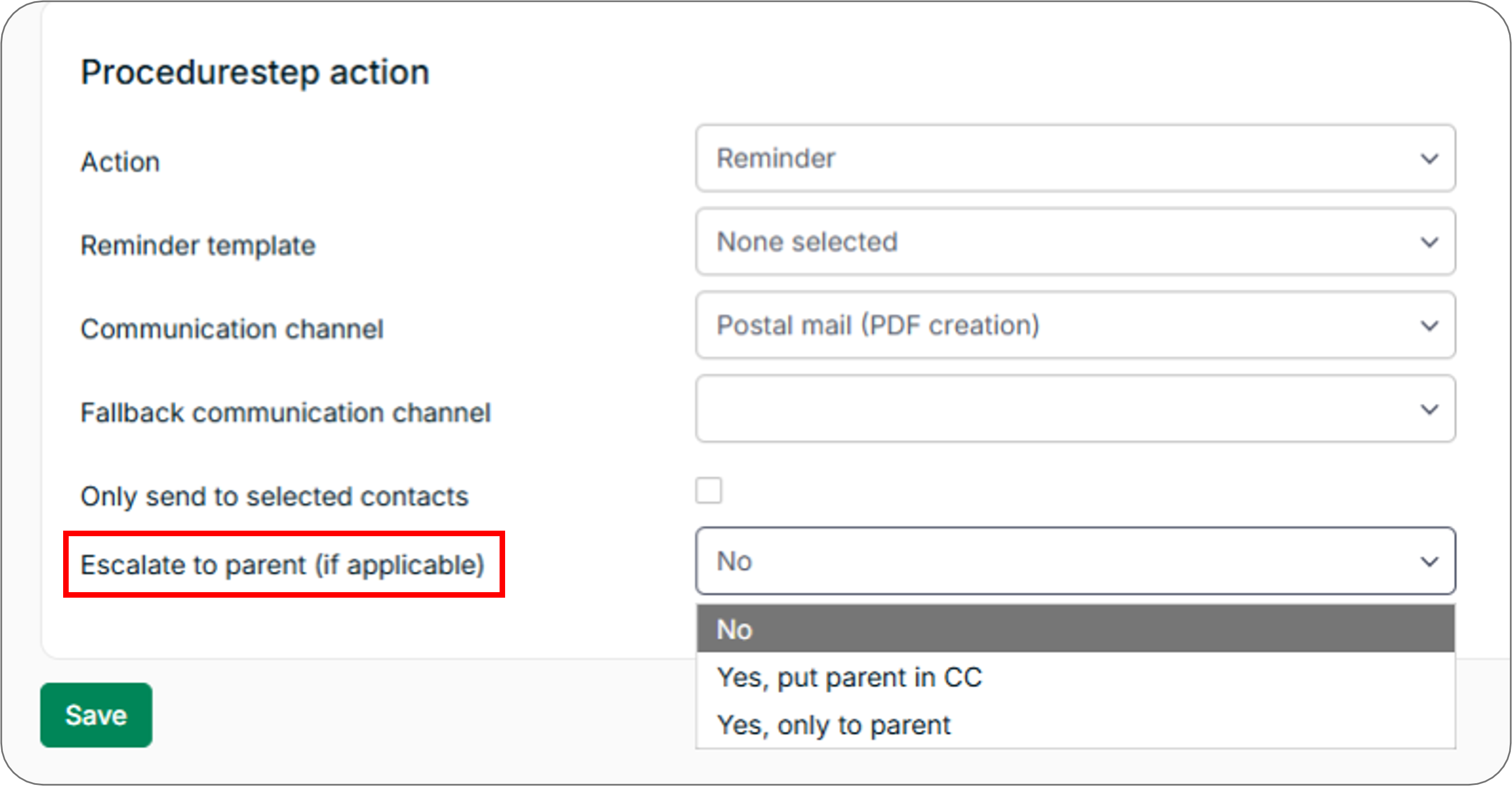
When configuring steps in a procedure, you can enable the option to escalate reminders to a parent account. See Add Steps to a Procedure for configuration instructions.
Note: This option is only available when account hierarchies are detected in your portfolio. Escalations apply only to the documents of a child account in procedure - parent documents are not included.
Escalation Channel Scenarios
When escalating reminders, the system handles channel availability as follows:
| Scenario | Outcome |
|---|---|
| The fallback channel is only available for the parent, but both primary and fallback channels are available for the child (or vice versa) | Send to both parent and child using the fallback channel |
| None of the channels are available for the parent, but they are available for the child (or vice versa) | Do not send anything - display a warning on the Worksheet indicating that the primary channel is unavailable |
| The primary channel is only available for the parent, but the fallback channel is only available for the child (or vice versa) | Do not send anything - display a warning on the Worksheet indicating that the primary channel is unavailable |
Statements
Use the following starting conditions when configuring a hierarchy to receive weekly or monthly statements:
- Weekly: Select Current day is and choose the day of the week.
- Monthly: Select It is day and enter a number between 1 and 31.
Note the following differences from account-level statement configuration:
- Totals are calculated across all documents for both parent and child accounts
- Custom fields are not available in account hierarchies
- You can select the day of the week or month on which to start the procedure
Related Articles
- About the Accounts Page
- About Account Records
- Create Procedures
- Add Steps to a Procedure
- Edit Account Records
Need Help?
If parent and child accounts are not grouping correctly after import, confirm that both the is_parent_account and parent_account_number fields are correctly populated in your data file. Contact the Billtrust Support team for further assistance.