

Add steps to a procedure
A collection procedure is only as good as its steps. Follow these instructions to configure steps with specific actions and conditions.
Steps
- Select Add new step.
- Give the step an informative name.
- Specify the number of days that must elapse before the step is executed.
- Select a step action: send a reminder, make a phone call, issue a warning, or send to outsourcing.
- If sending a reminder, complete the following:
- Select a template for the reminder message.
- Select the communication channel: postal mail, email, or SMS.
- Select a fallback communication channel.
- Select Only send to selected contacts to specify reminder recipients.
- Select Escalate to parent to notify the parent account about child-account reminders. This option is only available when account hierarchies are detected in your portfolio. See Configure Account Hierarchy for setup instructions.
- Select Save.
Configure Step Behaviour
After creating a step, you can configure additional aspects of its behaviour. On the procedure overview page, find the step you want to configure and then select Edit.
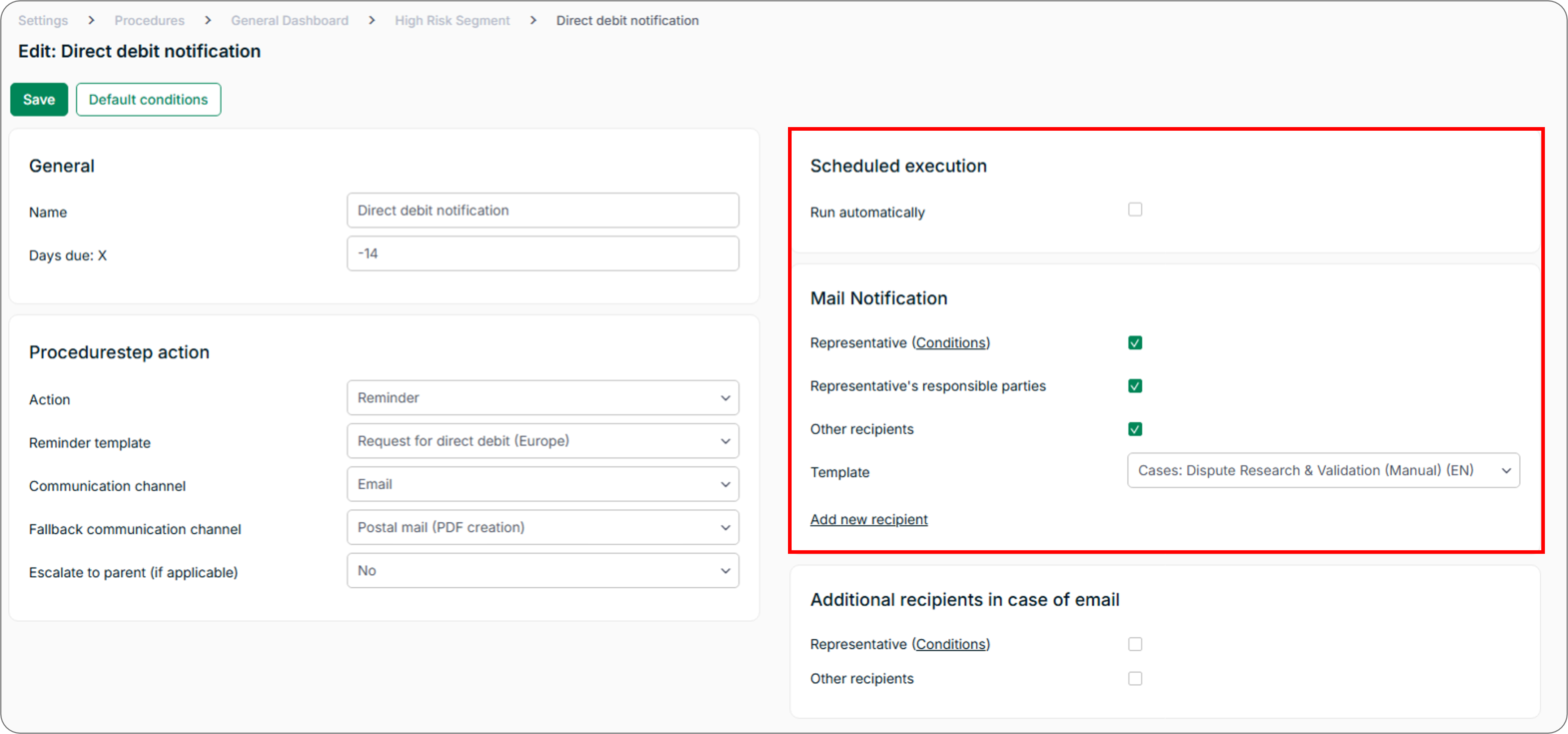
Make any of the following adjustments:
- Run automatically - Automate the step by selecting Run automatically. Set the time and interval (daily, weekly, or monthly) on which the procedure runs. You can also select a user to log as having processed the step.
- Representative - Notify the account representative about the step action. You can find the representative on the account record. To notify representatives only under certain conditions, select Conditions to add logic to notifications.
- Representative’s responsible parties - Notify the representative’s supervisor, that is, the person defined as responsible in your accounting platform.
- Other recipients - Select Add new recipient and then enter the recipient’s contact information.
- Template - Select a template for email notifications.
Next Steps
Repeat this process until you have added all the steps your procedure should contain.
Frequently Asked Questions
I scheduled a procedure step to run automatically but it has not been processed. Why?
Automatic procedures run according to the schedule you configured during setup. If the interval and time are correct, check whether the account has an active Collections mailbox. To verify this, select Settings → Company details, select the company or entity, and confirm that the correct email address appears in the Email column. If the email address is correct but the procedure continues to fail, contact the Billtrust Support team.
Related Articles
- Create Procedures
- Manage Procedures
- Add Account and Document Conditions
- Configure Account Hierarchy
- Use AI Procedure Recommendations
Need Help?
If a procedure step is not executing as expected, confirm that the step schedule and mailbox configuration are correct. Contact the Billtrust Support team for further assistance.