

Add notes to client records and documents
The Notes page functions as a system log - it records all actions that collectors take on an account. Although most notes are created automatically, you can also create manual entries.
Add Notes to Account Records
- In Collections, go to any account record.
- Select Notes from the left menu.
- Select Add note.
- Enter a description.
- (Optional) Select Link to the document to reference a particular invoice.
- (Optional) Select Choose file to upload an attachment.
- Select a note code. See Create and Edit Note Codes for instructions on creating custom note codes.
- Select Save.
Add Notes to Documents
Notes added to documents appear as log entries on the Notes page.
- Go to any account record.
- Scroll down to Overview outstanding documents.
- Select the documents you want to add notes to.
- In the Actions widget, select Add note.
- Enter a description.
- (Optional) Select Choose file to upload an attachment.
- Select a note code.
- Select Save.
View and Edit Notes
To see document-specific notes: Select the document icon in the Notes column of a document table. The note appears in a popup window where you can edit or delete it.
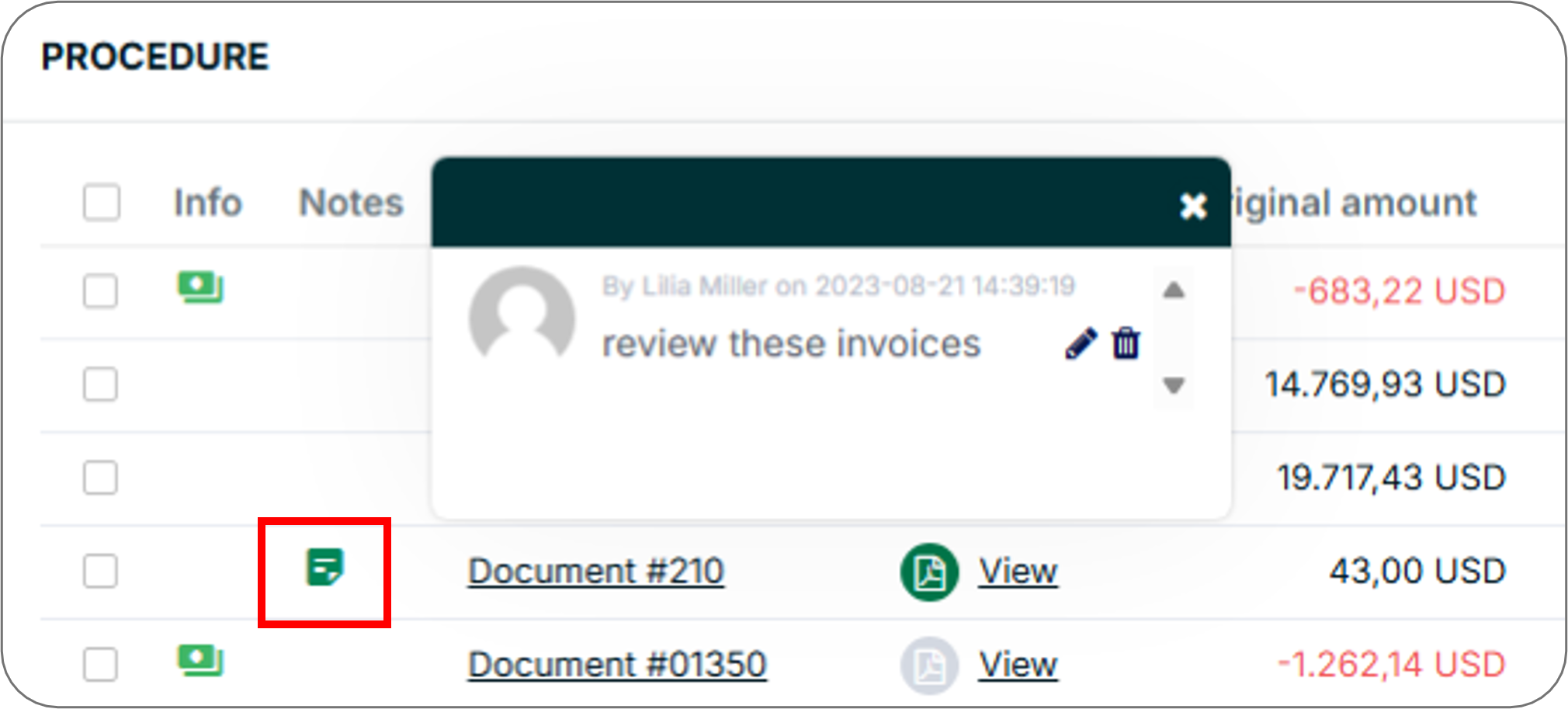
To see all account notes - including those created by system actions - select Notes from the left menu of an account record. From this view you can:
- Select column headers to sort the notes table
- Search for notes by keyword
- See linked documents and view note attachments
- Edit or delete notes by selecting the relevant action from the Actions column
Supported Attachment Formats
When uploading attachments to a note, the following file formats are supported:
BIN, BMP, BZ2, CSV, DAT, DOC, DOCM, DOCX, DOTM, DOTX, EML, EMZ, GIF, GZ, HTM, HTML, ICS, JPEG, JPG, JSON, MHT, MSG, ODG, ODS, ODT, OFT, ONE, P7S, PDF, PNG, PPTX, RTF, SVG, TIF, TIFF, TXT, VCF, XLS, XLSB, XLSM, XLSX, XLT, XML, XPS, ZIP
Related Articles
- About Account Records
- About Document Statuses
- Change Document Status
- Create and Edit Note Codes
- Edit Account Records
Need Help?
If a note is not appearing on the Notes page after saving, confirm that the note code was selected before saving. Contact the Billtrust Support team for further assistance.