

Edit client records
Account records in Collections contain an Edit data page with two kinds of data fields:
| Field Type | Description |
|---|---|
| Import fields | Tied to your data files - indicated by a lock icon. These fields are overwritten each time data files are imported. You can edit import fields by selecting the lock icon, but your changes will revert after the next import. |
| Standard fields | Editable directly from the Edit data page. Changes persist indefinitely. |
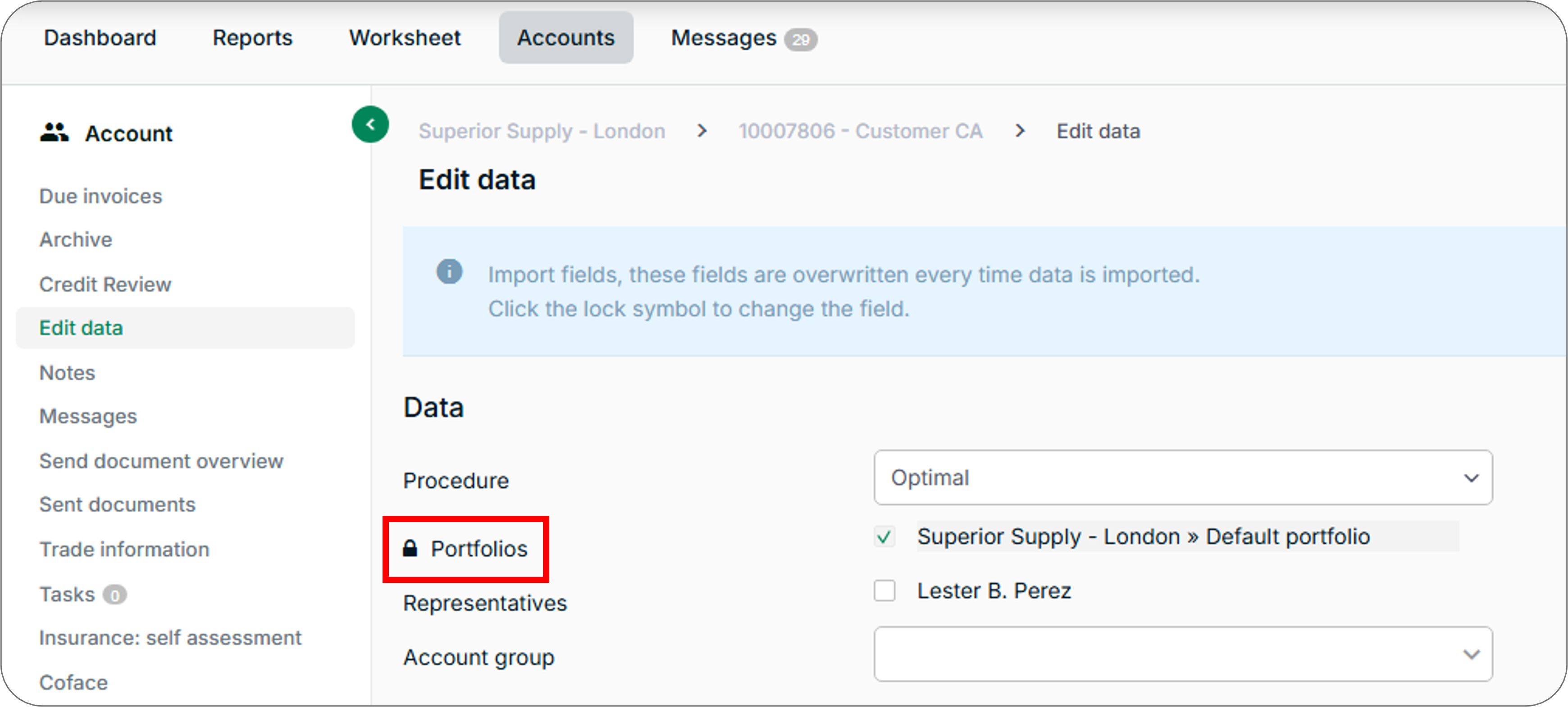
Steps
- In Collections, go to any account record.
- Select Edit data from the left menu.
- Make your changes and then select Save.
Data Fields Reference
Data
| Field | Description |
|---|---|
| Procedure | Manually change the account’s collection procedure |
| Portfolios | Shows the portfolio to which the account belongs |
| Representatives | Select account representatives to activate or deactivate them |
| Account group | Use the dropdown to assign the account to a group |
Details
| Field | Description |
|---|---|
| Reference number | The account’s unique reference identifier |
| Name and address | Name and address information |
| VAT number | The account’s VAT registration number |
| Company registration number | The account’s company registration number |
| Language | The account’s preferred language |
| Description | A free-text field for notes about contact details |
Trade Information
Enter the account’s DUNS number if available.
Custom Fields
Lists any custom fields you have created. Reposition custom fields by selecting Change custom field order.
Contacts
Lists any account contacts you have added. To create a new contact, select Add new contact, complete the form, and then select Save. You can also edit or delete existing contacts from this section.
Communication Channels
Enable or disable email, SMS, and postal mail communications for the account.
Contact Details
Lists telephone, cell phone, email, and fax information.
Availability by Phone
Select the days on which the account can be reached by phone. Leave notes about availability - for example, preferred hours or blackout dates.
Frequently Asked Questions
What if I want to send reminders to an email address other than the one on the account record?
Change the email address in your ERP or accounting software. The updated email address will appear in Collections after the next data synchronisation.
Related Articles
- About Account Records
- Add Notes to Account Records and Documents
- Change Document Status
- Configure Account Hierarchy
- About the Accounts Page
Need Help?
If changes to import fields are reverting after each import, confirm that the fields are being updated in your source data file rather than only in Collections. Contact the Billtrust Support team for further assistance.