

Standard case workflow configuration guide
Use this guide as a reference configuration for the case workflow builder. The following workflow is triggered by all DCS dispute reasons and covers the five standard phases of dispute handling.
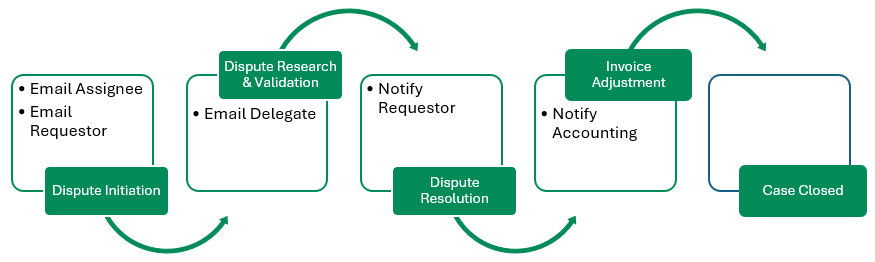
| Phase | What Happens |
|---|---|
| Dispute Initiation | The assignee is emailed automatically or manually. The requestor can also be emailed manually or automatically if their email is known. |
| Dispute Research and Validation | An email can be sent to a delegate to conduct research. |
| Dispute Resolution | An email can be sent automatically or manually to account for invoice adjustment. |
| Invoice Adjustment | Once resolved, Accounting is notified to adjust the invoice. |
| Case Closure | The dispute case is officially closed in the system. |
To configure this workflow, start by creating your email templates. See Use the Template Editor for instructions on building templates.
Standard Email Templates
Use the following suggested text and replaceable tags to create email templates for each phase.
Step 1: Dispute Initiation
Email to dispute assignee (automatic)
Dear
**dcs-case-assignee-name**,You have been assigned a new dispute to review. Please find the details below:
Account:
**case-linked-clients**
Document:**case-linked-documents**
Dispute ID:**case-number**
Dispute Amount:**dcs-case-dispute-amount**
Dispute Reason:**dcs-case-reason**
Comments:**case-comment**Thank you for your prompt attention to this matter.
Email to dispute assignee (manual)
Dear
**dcs-case-assignee-name**,You have been assigned a new dispute to review. Thank you for your prompt attention to this matter.
Email to dispute requestor (manual)
Dear
**recipient-name**,We have received your dispute, and it has been assigned to a member of our team for further review. You will be notified of any updates as they become available.
Best regards,
**dcs-case-assignee-name**
Step 2: Dispute Research and Validation
Email to delegate (automatic)
Dear
**case-delegates**,We need your assistance in researching and validating the following dispute. Details are as follows:
Account:
**case-linked-clients**
Invoice:**case-linked-documents**
Dispute Reason:**dcs-case-reason**
Dispute Amount:**dcs-case-dispute-amount**
Comments:**case-comment**
Case Number:**case-number**Please respond to this email with your findings. Your expertise is greatly appreciated.
Best regards,
**dcs-case-assignee-name**
Email to delegate (manual)
Dear
**case-delegates**,We need your assistance in researching and validating the following dispute. Details are as follows:
Dispute Reason:
**dcs-case-reason**
Dispute Amount:**dcs-case-dispute-amount**Please respond to this email with your questions and findings.
Thanks,
**dcs-case-assignee-name**
Step 3: Dispute Resolution
Email to requestor (automatic)
Dear
**recipient-name**,Your dispute has been resolved. Your invoice will be adjusted by
**dcs-case-dispute-amount**and reissued.Thank you for your patience.
Best regards,
**dcs-case-assignee-name**
Step 4: Invoice Adjustment
Email to accounting or AR department
The disputed amount of
**dcs-case-dispute-amount**has been resolved as valid. Please update and reissue the invoice for this account.Invoice:
**case-linked-documents**
Account:**case-linked-clients**Thank you for your prompt attention.
Best regards,
**dcs-case-assignee-name**
Replaceable Tags Reference
| Tag | Description |
|---|---|
**case-linked-clients**
|
The account associated with the dispute case |
**case-linked-documents**
|
The invoice(s) associated with the dispute case |
**case-number**
|
The unique dispute ID |
**dcs-case-dispute-amount**
|
The disputed amount |
**dcs-case-reason**
|
The reason for the dispute |
**case-comment**
|
Comments entered on the dispute case |
**dcs-case-assignee-name**
|
The name of the dispute assignee |
**case-delegates**
|
The delegate(s) assigned to the dispute |
**recipient-name**
|
The name of the email recipient |
Next Steps
Now that your templates are in place, you are ready to configure the case workflow. See Create Case Workflows for configuration instructions.
Related Articles
- Best Practices: Define a Dispute Workflow
- Create Case Workflows
- Use the Template Editor
- Cases Overview
- Create and Manage Dispute Cases
- Resolve Disputes
Need Help?
If replaceable tags are not resolving in your email templates, confirm that the tag names are entered exactly as shown above, including the asterisks. Contact the Billtrust Support team for further assistance.