

Cases overview
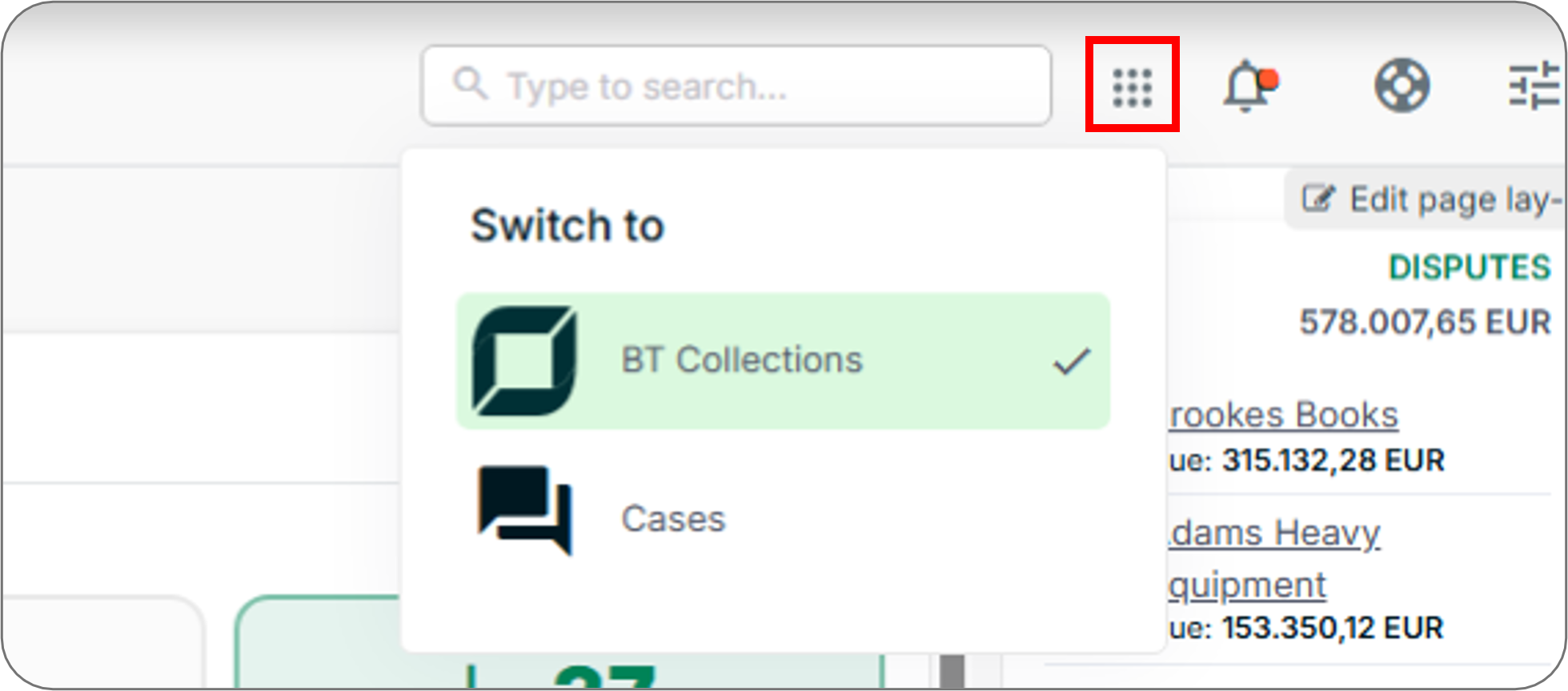
Cases is Collections’ dispute management module - use it to track, manage, and resolve buyer disputes from a centralized table. Access Cases by selecting App switcher from the Collections navigation header, then selecting Cases.
Cases Table Features
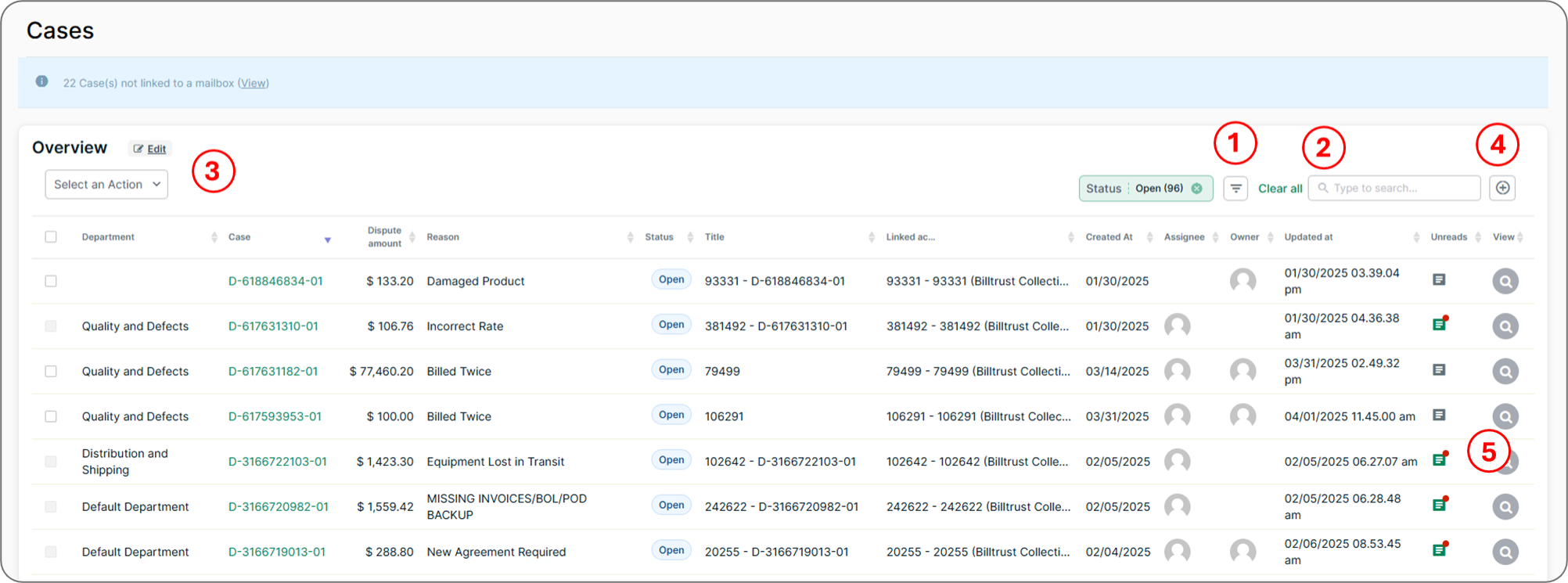
| Feature | Description |
|---|---|
| Filter | Select the funnel icon to narrow disputes by column attributes - for example, by owner or dispute status. To filter by a given column, you must first designate it as filterable when configuring the Cases table. See Configure the Case Table. |
| Search | Find a dispute by entering its unique dispute ID or by searching the account name or number. |
| Bulk Edit | Select multiple disputes and then select Edit. Updates apply to all selected disputes. Use caution when making bulk edits. |
| Bulk Resolve | Select multiple disputes and then select Resolve to update their status in bulk. |
| Create a new case | Manually enter case details to add a new dispute to the table. |
| Unread indicators | Unread items display a visual indicator to help you prioritise the latest information. The indicator disappears once you review the new information. |
Related Articles
- Create and Manage Cases
- Create Case Workflows
- Configure the Case Table
- Create Custom Fields
- Resolve Disputes
- Create Case Reports
Need Help?
If the Cases module is not visible in the App switcher, confirm that your account has the appropriate permissions to access Cases. Contact the Billtrust Support team for further assistance.