

Use the template editor
Select an existing template or create a new one to launch the template editor. Use the editor to customize the content, appearance, and behavior of your templates.
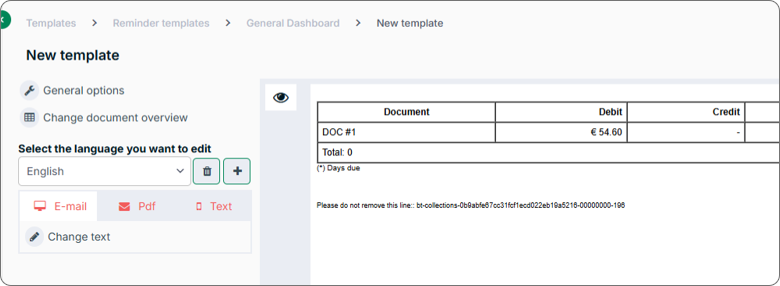
Configure General Options
These options determine how templates behave in the system. Select Save after making your choices.
| Option | Description |
|---|---|
| Name | Give the template an informative name for future reference |
| Location | Enter the location of your company |
| Visible document statuses | Select which document statuses appear in the template. Documents in Procedure are shown by default. Additional statuses: Payment Promise, Dispute, Payment Plan, Outsourcing, Contractual Credit, Dispute Approval Required, Doubtful, Put on Hold, Multiple Payers, Paid Online. |
| Show only documents with days in procedure | Specify a range of days to show only that subset of documents |
| Show only due documents | Limits the document table to overdue documents only |
| Show totals in document table | Displays total amounts in the document overview table. You can also use replaceable tags to include totals in the message text. |
| Show reconciliations | Displays reconciliations in the document overview table |
| Attach PDF to email | Generates a PDF for every communication, even when reminder emails are not enabled for the account contact |
| Attach a document list to the email | Attaches the document list in Excel format |
Change Document Overview
Use these settings to select the columns that appear in the template’s document overview and customise the table appearance. Select Save after making your selections.
Appearance options:
- Hide vertical grid lines
- Change the colour of the table header
- Change the colour of the Total cell
- Align totals on the right side of the cell
- Split the document table by overdue and not-overdue documents
Standard columns (drag and drop to change order):
| Column | Column |
|---|---|
| Document | Remaining amount |
| Debit | Original amount |
| Credit | Internal comment |
| Date | Description |
| Due date | Account name |
| Days due | Account reference |
| Interests | Constituent name |
| Days in procedure | |
| Debit in original currency |
Add Languages to a Template
Select the plus sign to add another language to the template. Select the language and then select Add language. Use the dropdown to toggle between languages.
Select the trash can icon → OK to remove a language from the template.
Change Template Text and Add Images
Select Email, PDF, or Text → Change text to create the message content of a template. Messages appear below the document overview table.
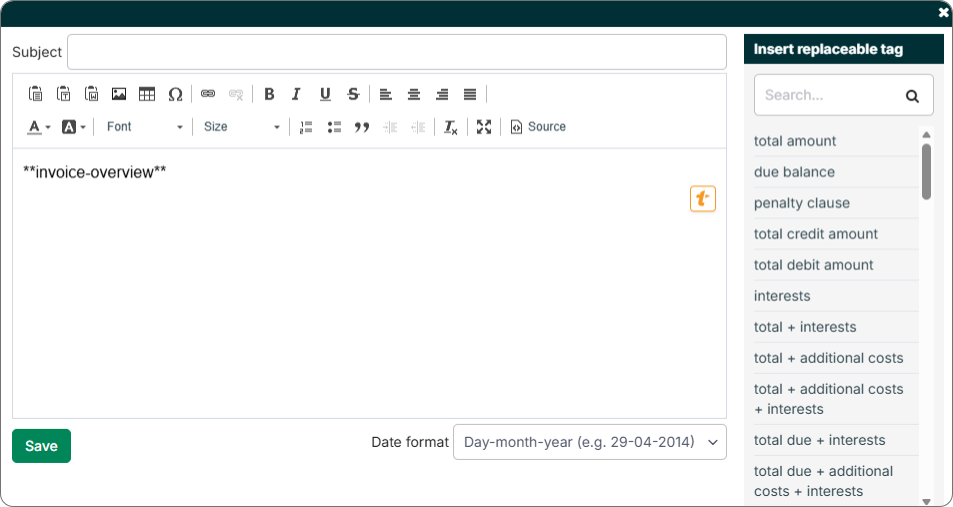
In the rich text editor you can:
- Enter a message subject
- Edit the body text
- Change the date format
- Insert replaceable tags. See Use Replaceable Tags for the full tag reference.
You can also add images by copying and pasting them directly into the editor. You cannot edit or resize images in the editor - complete any image editing before pasting.
Change PDF Background and Margins
When creating a PDF template, select Change background to customise the document appearance. Choose from the following options and then select Save:
| Option | Description |
|---|---|
| Use PDF background from company settings | Uses the global company-wide background configured on the Company details page |
| Use PDF background on account level | Uses the PDF background tied to the account-level background setting. When the value of this field matches the name of a PDF background in the branding library, that background is used. If no match is found, no background is used. |
| Upload PDF background | Adds a new PDF background to this template only |
Frequently Asked Questions
How do I change the account number on my templates?
Select Settings → Company details and then select the relevant company. Update the account number, IBAN, and BIC fields as needed. Then use replaceable tags to insert the correct information into your template.
There is a blank space under the invoice table in my template. Can I remove it?
The space cannot be removed but it can be minimised. Add text directly under the invoice-overview replaceable tag to reduce the visible gap.
Related Articles
- Create Correspondence Templates
- Use Replaceable Tags
- Manage Message Templates
- Add Branding to Templates
- Create Account Export Templates
- Case Workflow Configuration Guide
Need Help?
If changes to a template are not appearing in sent reminders, confirm that the template was saved and that the correct language version is linked to the account. Contact the Billtrust Support team for further assistance.