

Resolve disputes from a client record
You can resolve disputes from two places in Collections: directly from an account record, or from the Cases app. Both paths use the same resolution process.
Resolve from an Account Record
- Go to the relevant account record and locate the Dispute module.
- Select the disputes you want to resolve.
Note: You can resolve several disputes at once, provided you apply the same resolution status and reason to all selected disputes.
- Select Resolve from the dropdown.
- Select a resolution status: Valid or Invalid.
- Select a resolution type.
- Select a destination for the document - Paid is selected by default.
- Select note visibility: Internal or Shared.
- Add notes about the case.
- Attach supporting documentation if available.
- Select Next.
- Enter a description of the transaction.
- (Optional) Select Send email to notify the account contact.
- Select Confirm.
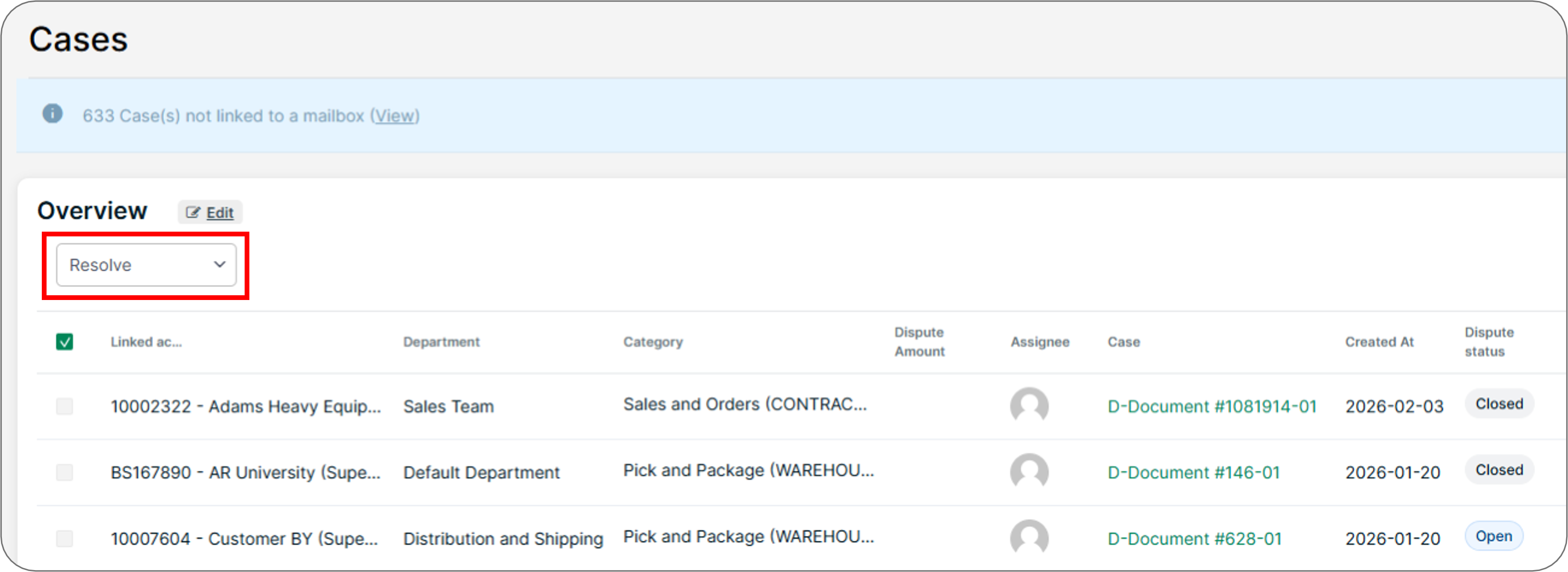
Resolve from the Cases App
- In Collections, select App switcher → Cases.
- Select the disputes you want to resolve.
- Select Resolve from the dropdown.
- Follow steps 4–13 from the account record procedure above on the dispute resolution page.
Related Articles
- Cases Overview
- Create and Manage Dispute Cases
- About Document Statuses
- Change Document Status
- Create Case Reports
Need Help?
If the Resolve option is not available in the dropdown, confirm that the dispute is in the correct status to allow resolution. Contact the Billtrust Support team for further assistance.