

Create Dispute Cases
In Collections, creating a dispute changes a document’s status to Dispute and automatically generates a corresponding case in the Cases module. You can create dispute cases in three ways:
| Method | Who Triggers It | How |
|---|---|---|
| Manual status update | Collector | Manually changes a document’s status to Dispute from the account record |
| Dispute from reminder | Buyer | Clicks the dispute button embedded in a dunning email |
| Status allocation | Automated rule | The Document Status Assigner moves documents to Dispute based on pre-configured criteria |
Create a Dispute from an Account Record
- Go to the relevant account record.
- Scroll down to Overview outstanding documents.
- Select one or more invoices from the Dispute or Payment Promise tables.
- Select Dispute.
- Select a dispute category.
- Select a reason for the dispute.
- Select the responsible department.
- Select an assignee.
- Enter a description of the transaction.
- Attach supporting documentation if available.
- (Optional) Select Send email to notify the account contact.
- Select Confirm.
The document status changes to Dispute and a case is created automatically in the Cases module.
Add a Dispute Button to Reminders
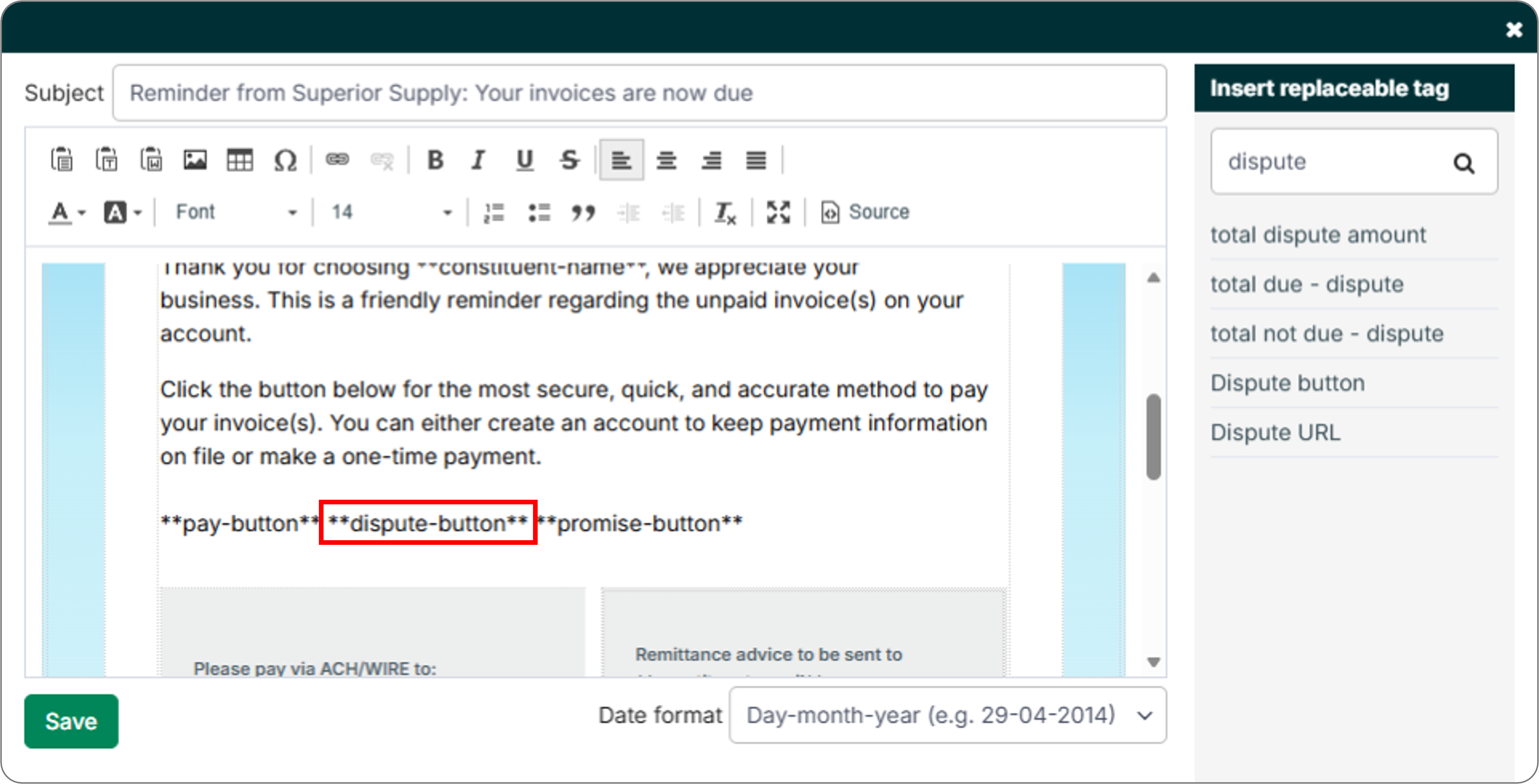
When creating reminder templates, use the replaceable tag dispute-button to insert a dispute call-to-action in the reminder.
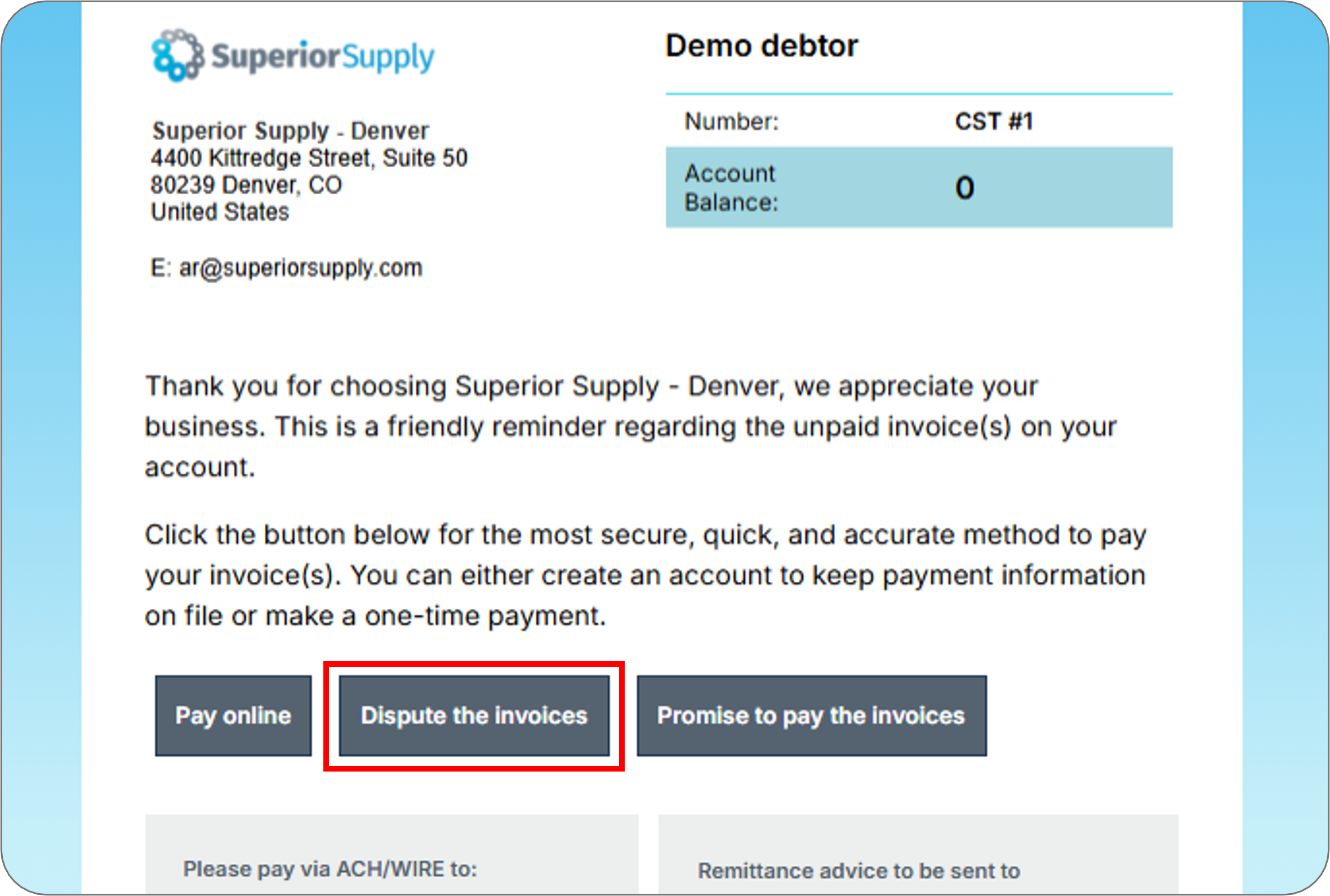
When buyers open the reminder, they see Dispute the invoices. Selecting this button allows buyers to:
- Choose which documents they want to dispute
- Share their reasons for disputing
- Change the amount they are disputing
A case is created automatically in the Cases module when the buyer submits the dispute.
Use Status Allocation
The Document Status Assigner automatically moves documents to Dispute status based on pre-configured rules - for example, when a custom field or ERP import flag indicates a dispute condition.
To configure automated dispute assignment:
- Go to Settings → Document Status Assigner.
- Define conditions based on document properties or custom fields.
- Save the configuration.
When the assigner job runs (for example, during the nightly batch), any qualifying documents are automatically moved to Dispute status and assigned the pre-configured dispute reason code. A case is created automatically in the Cases module without requiring collector intervention.
Related Articles
- Cases Overview
- Resolve Disputes
- Create Case Workflows
- Configure the Case Table
- Change Document Status
- About Document Statuses
Need Help?
If a dispute case is not appearing in the Cases module after changing a document’s status, confirm that the document status change was confirmed successfully. Contact the Billtrust Support team for further assistance.