

Add or edit roles and permissions
The Roles Overview page shows all of the roles and permissions used in applications across the Billtrust platform. Here you can also create custom roles.
Instructions
-
Select Settings > Roles from the global navigation header.
-
Select Add Role.
-
Name the role.
-
(Optional) Enter a description of the role.
-
Under Permissions, go app by app, selecting each permission you want the role to have.
Expand a product to see all permissions associated with it.
-
Select Save.
Edit, delete, or clone a role
Select a custom role from the dropdown and then select the relevant action.
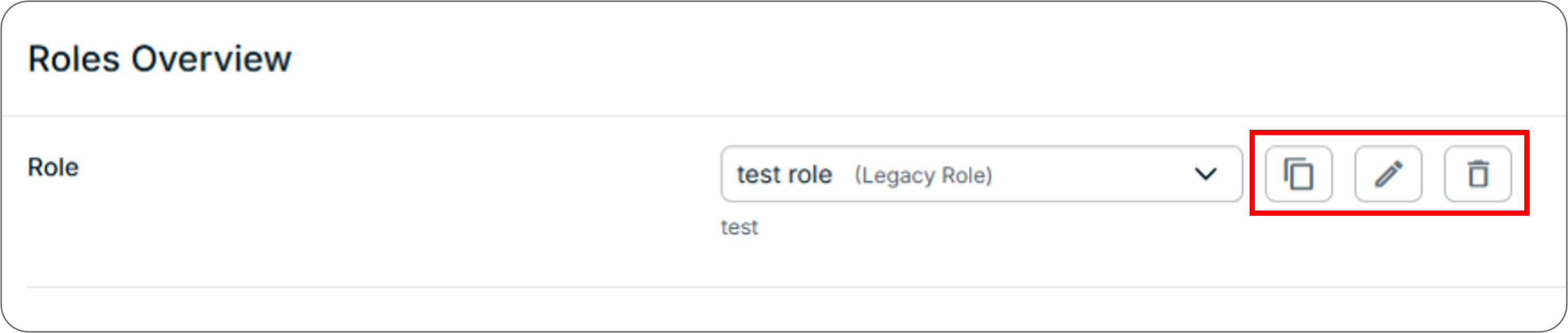
Note: You cannot edit or delete system roles.
About the Roles Overview page
On this page, administrators can perform the following actions:
-
View permissions associated with a role
-
See how many users are assigned to a particular role
-
Create a new role
-
Clone an existing role
-
Delete a role
-
Compare roles
Role permissions are indicated by a checkmark; dashes indicate grouped permissions. You must expand groups to see the permissions within them. Permission levels range from Read to Delete, increasing in capability (and therefore responsibility) with each step.
-
Read: The user has read-only privileges
-
Edit: The user has read and edit privileges
-
Create: The user has read, edit and create privileges
-
Delete: The user has read, edit, create and delete privileges