

Add branding to templates
Use the branding library to upload logos and PDF backgrounds for use in your templates. Logos are inserted using replaceable tags and PDFs can be used as page backgrounds.
Navigation: Select Settings → Settings from the Collections navigation header, then select Branding library from the left menu.
Upload Branding Content
- Select Settings → Settings from the Collections navigation header.
- Select Branding library from the left menu.
- Select Add new.
- Give the item a descriptive name.
- Select Type and then select Logo or PDF.
- (PDF only) Select Change margins to edit the pre-defined margin settings.
- Enter margin values or use the drag-and-drop interface to define margin positions.
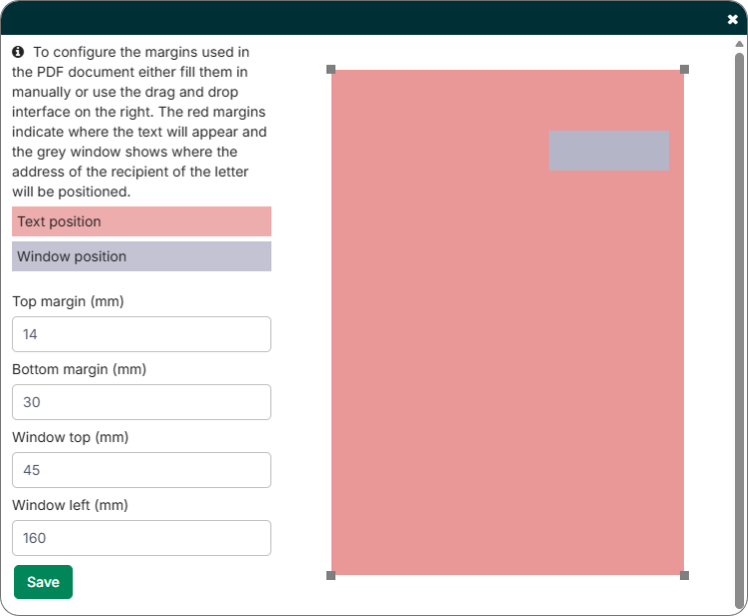
Note: The red area shows where text appears in the document. The grey window shows the position of the recipient’s address. - Select Fallback to choose a default logo or PDF. Fallback branding appears on a template when no other branding file has been added.
- (Optional) Select Branding languages → Add new to add multilingual branding content. For every template language you create, you can upload a corresponding branding file.
- Select Submit.
Edit or Delete Branding Content
Select Branding library from the left menu to review all uploaded content.

- Select Edit to revise a branding item.
- Select Delete → OK to remove a branding item.
Related Articles
- Use the Template Editor
- Create Correspondence Templates
- Use Replaceable Tags
- Manage Message Templates
- Edit Company Details in Collections
Need Help?
If uploaded branding is not appearing in your templates, confirm that the correct branding item is selected in the template’s general options and that a fallback has been set. Contact the Billtrust Support team for further assistance.