

Create account export templates
If you regularly create the same account exports, consider creating export templates. Templates let you predefine the data to include or exclude and set a default export type - PDF, CSV, or HTML - so you do not have to reconfigure the same settings each time.
Steps
- Select Settings from the Collections navigation header.
- Select Account exports from the left menu.
- Select Add new.
- Select the types of data you want to include in the export.
- Enter a name for the template.
- Select the company whose data you want to export.
- Select an export type: PDF, PDF (all-in-one file), CSV, or HTML.
- (Optional) Select Use email to send export files to specific email addresses automatically.
- Select Save.
Configure Export Data
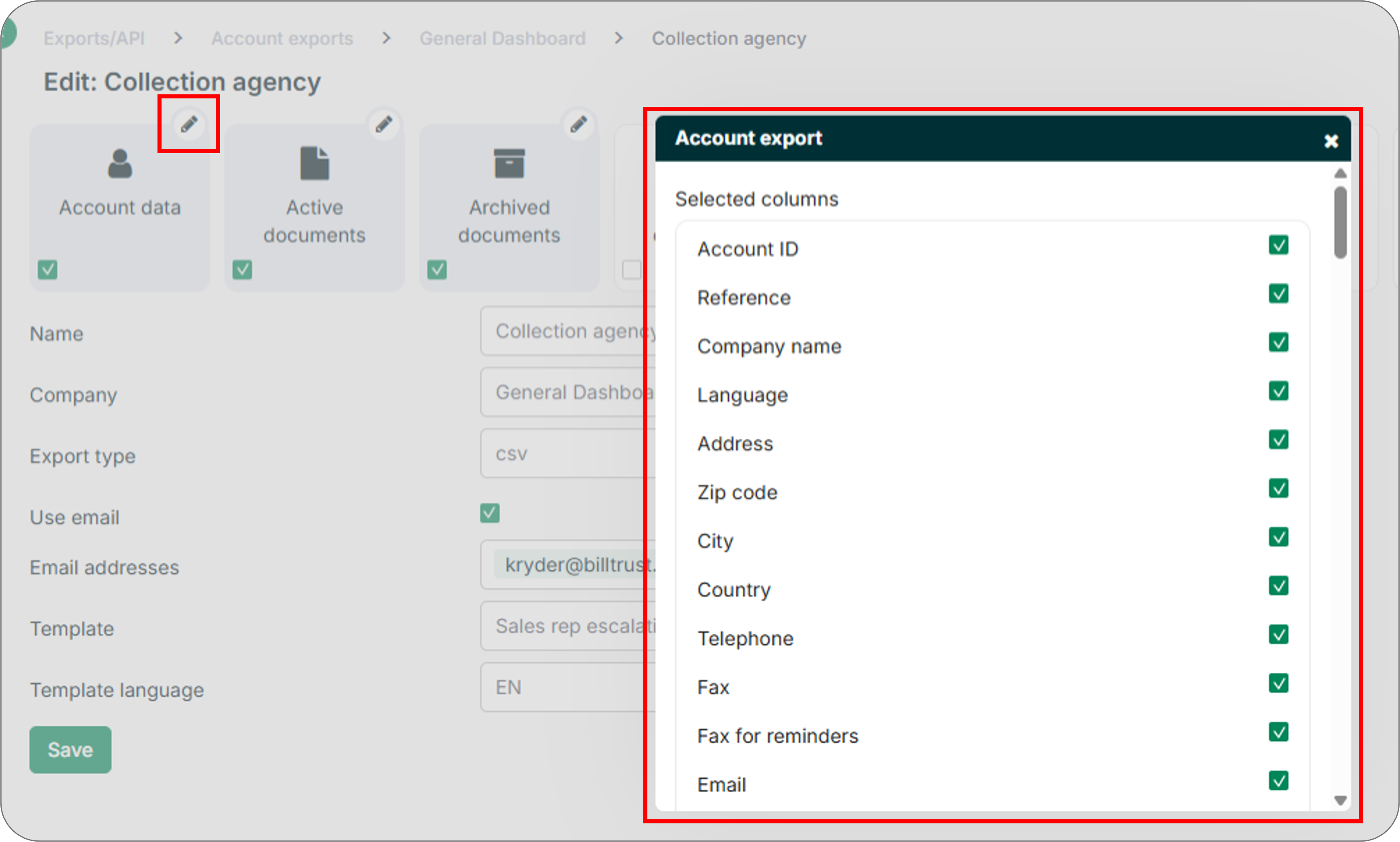
After creating a template, select the pencil icon next to each data type to fine-tune the items included in that category. For example, when exporting account data you can add or remove company names, addresses, languages, and telephone numbers. This is useful when preparing exports for third parties such as collection agencies.
Related Articles
- Create Correspondence Templates
- Use the Template Editor
- Use Replaceable Tags
- Manage Message Templates
- Add Branding to Templates
- Configure and Schedule Tasks
Need Help?
If an export template is not appearing when running an account export, confirm that the template was saved and that the correct company is selected. Contact the Billtrust Support team for further assistance.