

Manage procedures
Visit the Procedures overview page to fine-tune, copy, or delete the procedures you have created.
Navigation: Select Settings → Procedures from the Collections navigation header.
1. Procedure Toolbar
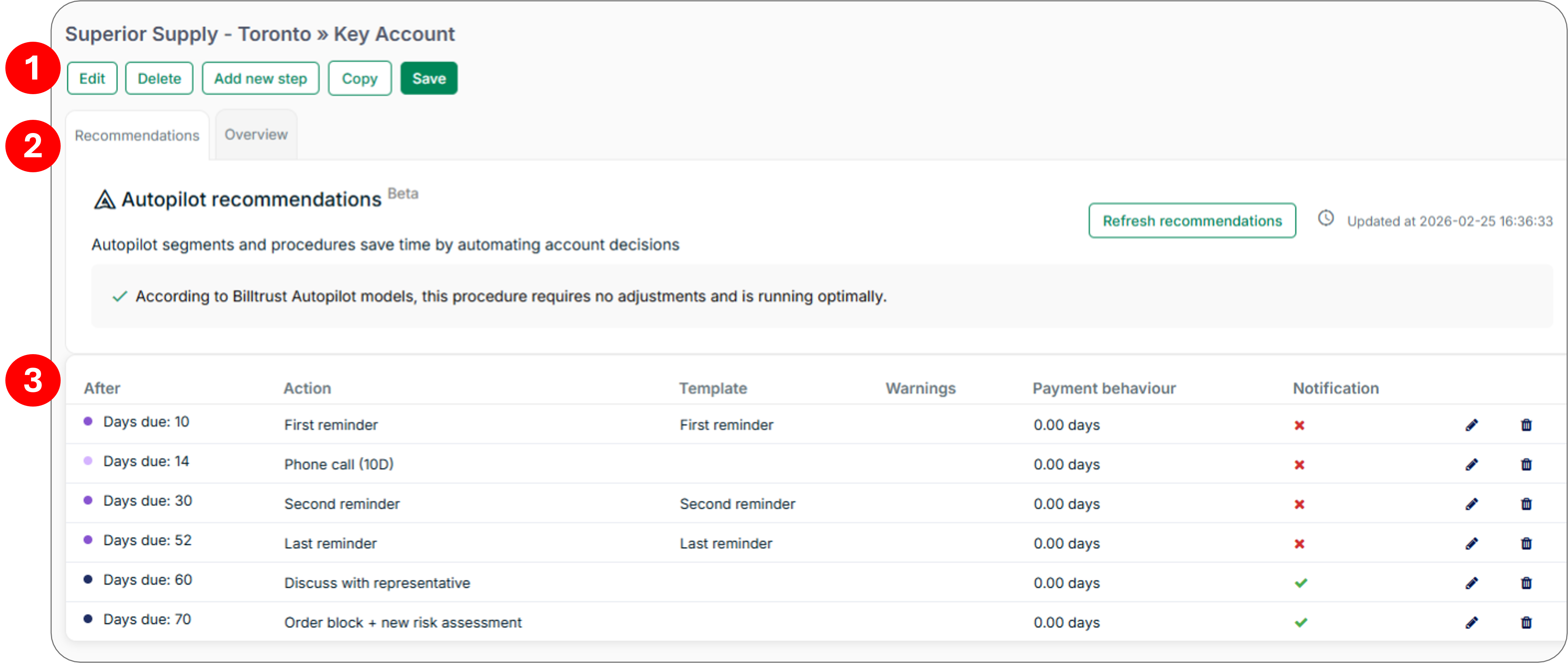
Edit - Rename a procedure or adjust account and document conditions. See Add Account and Document Conditions for details.
- Delete → OK - Remove a procedure permanently.
- Warning: Deleted procedures cannot be recovered. Confirm the procedure is no longer in use before deleting.
- Add New Step - Configure a new procedure step. See Add Steps to a Procedure for instructions.
- Copy - Clone a procedure, then choose the companies to which the copy should be added.
2. Recommendations and Overview Tabs
- The Recommendations tab contains AI-powered procedure adjustments based on account payment history. Select Refresh recommendations to generate a fresh set of proposals. See Use AI Procedure Recommendations for details.
- The Overview tab contains the procedure impact optimizer. Change the timing of procedure steps to see the effect on payment probability.
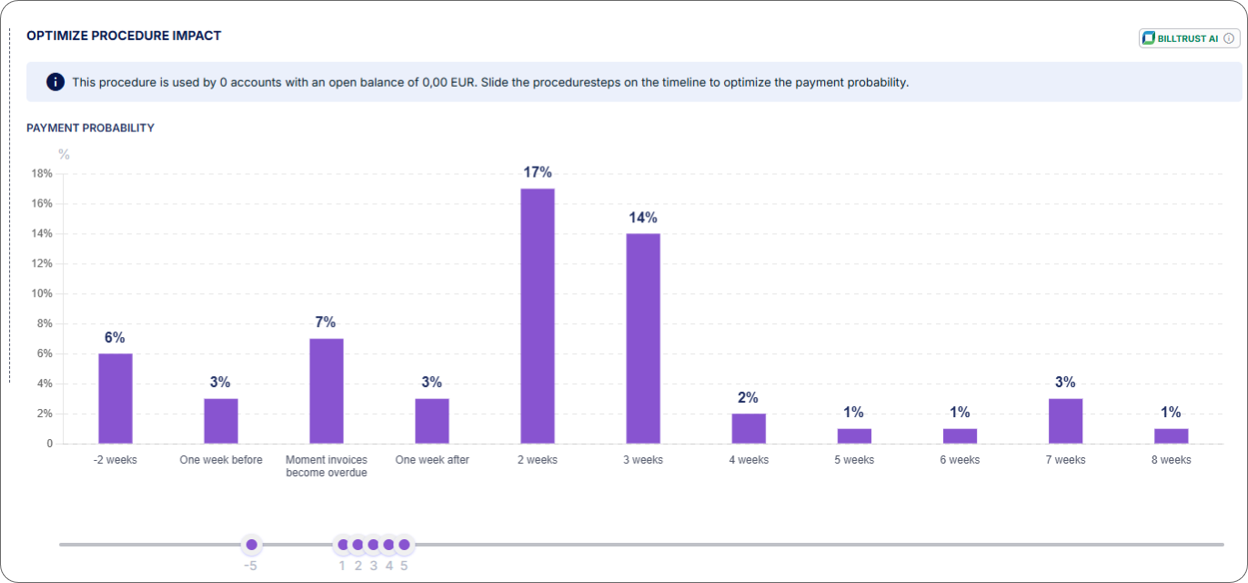
Note: Drag any dot on the timeline to a new position. Growth is indicated by a percentage above the bar. If the bar turns purple, the payment probability of that procedure step has increased.
3. Procedure Step Table
This table shows the steps that a procedure contains, including the step name, template, payment behaviour, notification status, and any warnings that need to be addressed.
- Edit - Configure a step’s behavior. See Add Steps to a Procedure for instructions.
- Delete → OK - Remove a step permanently.
Warning: Deleted steps cannot be recovered.
Related Articles
- Create Procedures
- Add Steps to a Procedure
- Add Account and Document Conditions
- Use AI Procedure Recommendations
Need Help?
If a procedure is not appearing on the Procedures overview page, confirm that it was saved successfully. Contact the Billtrust Support team for further assistance.