

Manage emails in Collections
Messages is an inbox built directly into Collections - read, send, and organize account contact emails without switching between applications. You can also access Messages from the left menu of any account record, which shows only emails that relate to that account.
Messages Overview
Messages are sorted into four areas: Inbox, Sent, Undelivered, and Archive. You will be working in the Inbox most of the time, but you can use the Sent and Undelivered labels to track outgoing emails.
To archive an email, select it and then select Mark Done.
Note: You cannot restore archived messages to the inbox - use caution when marking messages as done.
Unprocessed (rather than unread) messages are indicated by a grey circle. This indicator remains until messages are marked as done.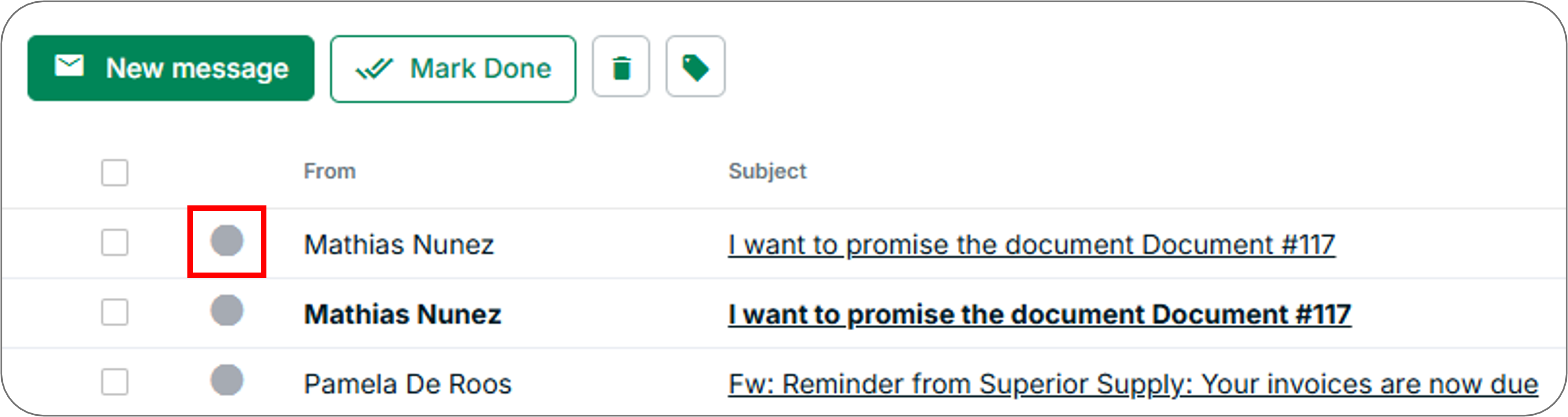
Marking a message as done moves the email from the global Messages inbox to the message archive of the relevant account record. To see past correspondence with an account contact, go to their account record and then select Messages from the left menu.
Compose Emails
- Select New message to compose a new email. The To and Accounts fields include a typeahead feature to help you find the intended recipient.
- Select Save as draft to save your email to the Drafts folder. Drafts are automatically deleted after 30 days.
- Select Add attachments to upload files to the message. You can also attach files by dragging and dropping them into the email editor.
- Use the Select template dropdown to choose an email template if available.
Label Emails
Use labels to structure your workflow and group related messages. To create a label, select New label from the left menu. Give the label a descriptive name and then select Create label.
To label messages, select the emails you want to label, hover over the label icon, and then select a label from the list.
Note: You can apply labels in bulk, but you cannot remove them this way. Once a label is applied, it must be removed manually.
Search and Filter Emails
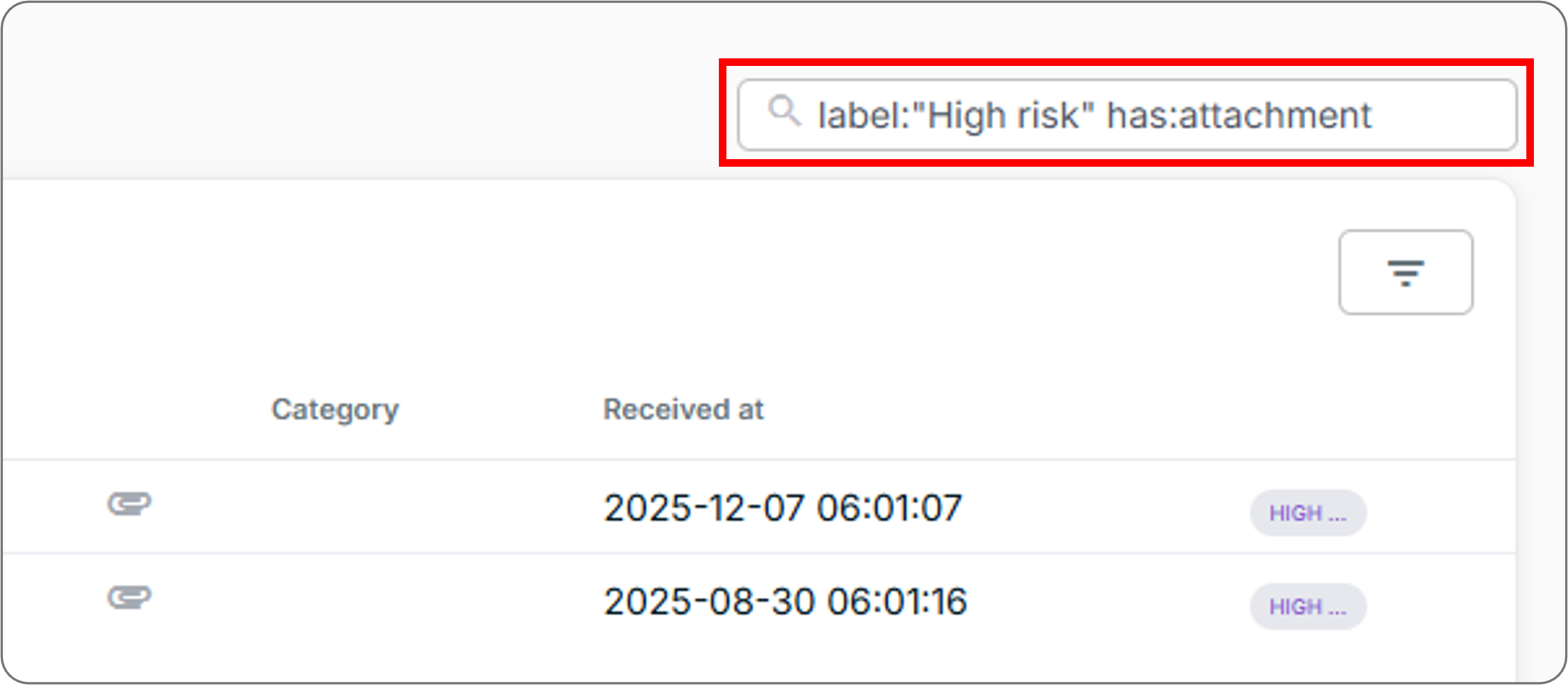
Use filters to narrow down the messages you are looking for. You can apply several filters at once. Select the funnel icon in the upper right corner of the inbox and then apply any of the following filters:
- Label
- Account
- Category
- From (sender)
- To (recipient)
- Keywords (whether a message contains or does not contain specific words)
You can also filter messages by those that have attachments, those that have to-do items, and those not linked to accounts.
To remove filters, clear the text in the search field and then press Enter.
Message Folders
Messages includes three folders for non-inbox content: Drafts, Trash, and Spam. When you delete emails, they are sent to the Trash folder. To restore deleted emails, select them and then select Restore mails. You can restore miscategorized spam the same way.
Note: You can restore messages within 30 days of deletion.
Frequently Asked Questions
I do not see incoming emails in Collections. What should I check?
The mailbox integration works via automatic forwarding. A forwarding address provided during implementation should be linked to your organisation’s email server. Verify that this configuration is still correct. If not, contact the Billtrust Support team to receive the correct forwarding address.
Can I enable automatic replies?
The Collections mailbox is not an actual email mailbox. It is a virtual view that fetches and displays messages from your existing email accounts - for example, accounts.receivable@yourcompany.com. Automatic replies are not supported.
How does Collections match email replies to the correct account?
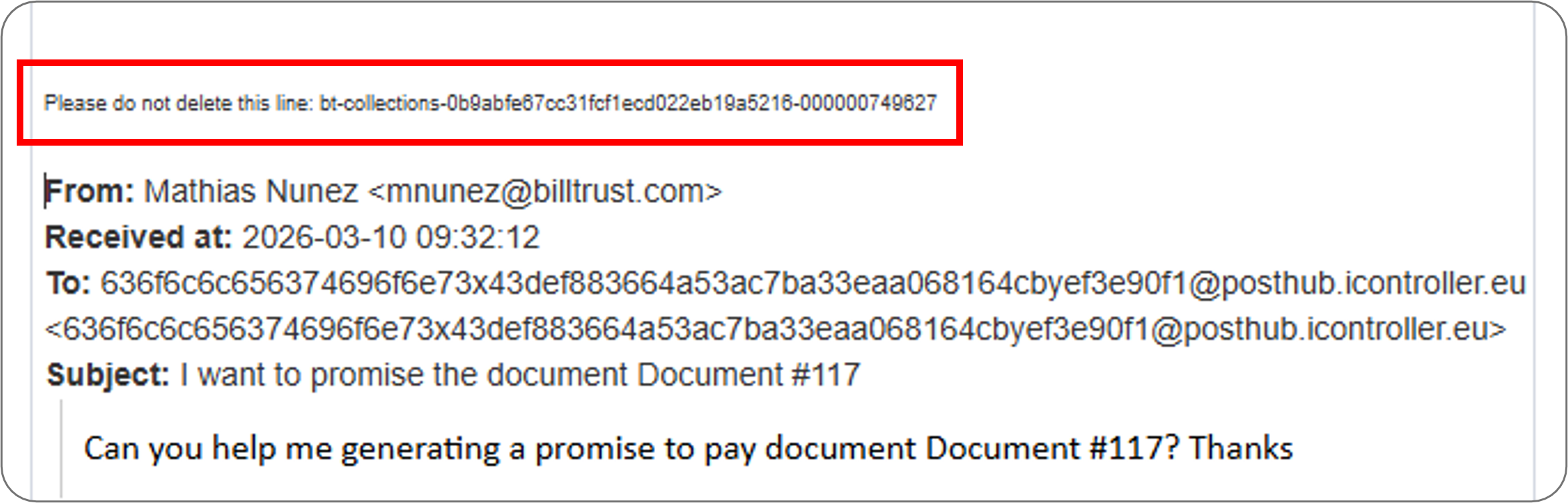
Collections adds a unique tracking ID to each reply you send. If this line is removed, Collections cannot match the reply correctly to the account. Do not remove or edit the tracking ID in outgoing emails.
Related Articles
- Create Email Templates
- Use Agentic Email
- Send Manual Reminders
- Send Reminders via Text Message (SMS)
- Add Notes to Account Records and Documents
Need Help?
If incoming emails are not appearing in Collections, confirm that the forwarding address is correctly configured on your organization’s email server. Contact the Billtrust Support team for further assistance.