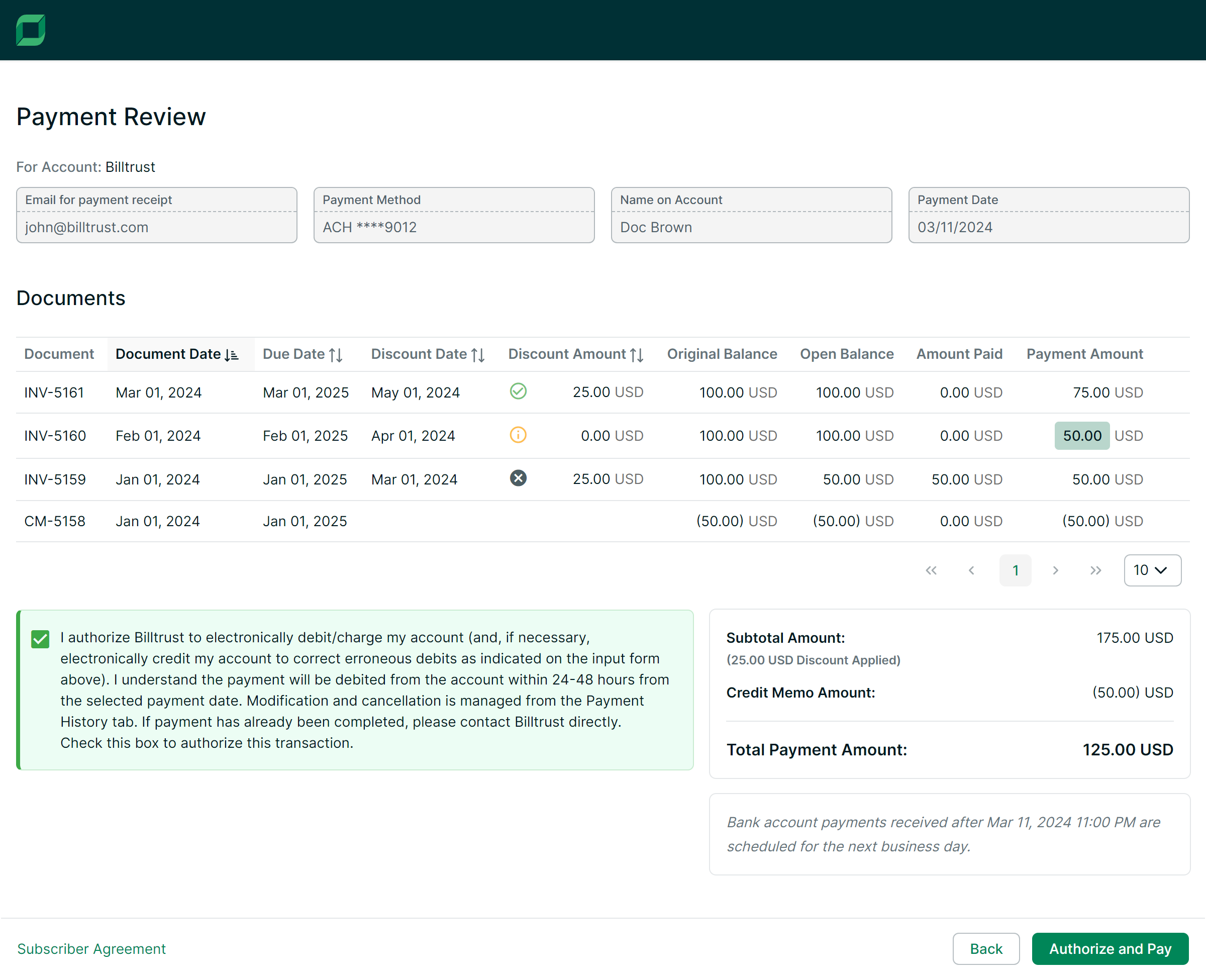
Making a payment with payments engine
eInvoice Connect and Client Connect users manage their payments using our payments engine.
- Sign in to eInvoice Connect (Buyer) or Client Connect (Supplier).
- Select desired documents to be paid.
- Click Pay Invoices (Buyer) or Accept Payment (Supplier).
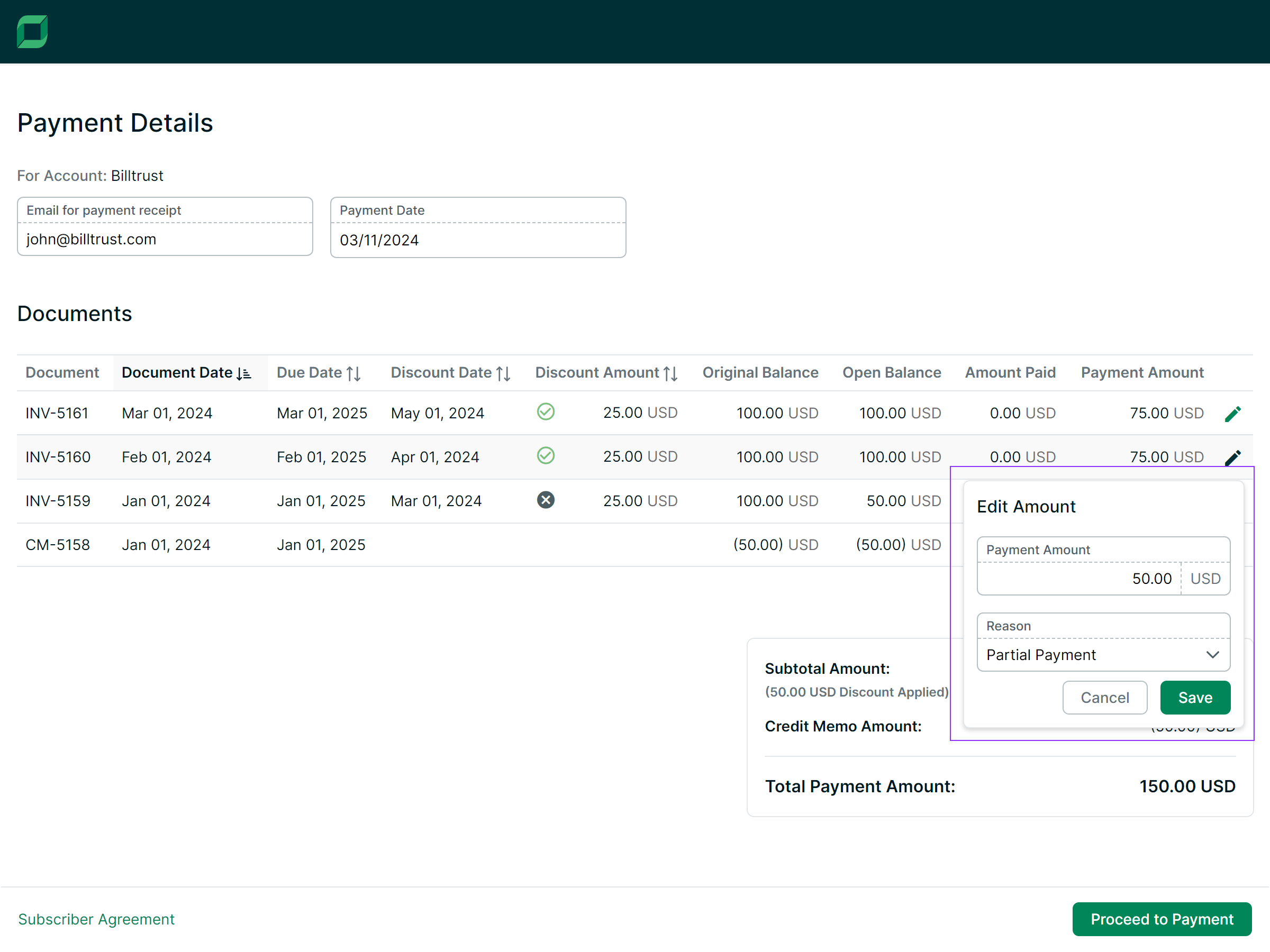
The Payment Details page opens.
-
Enter Email for payment receipt.
-
Select Payment Date.
- Click the pencil icon next to the Payment Amount to make edits.
 NOTE
NOTEA reason prompt may be available depending on the configuration.
- Select Proceed to Payment.
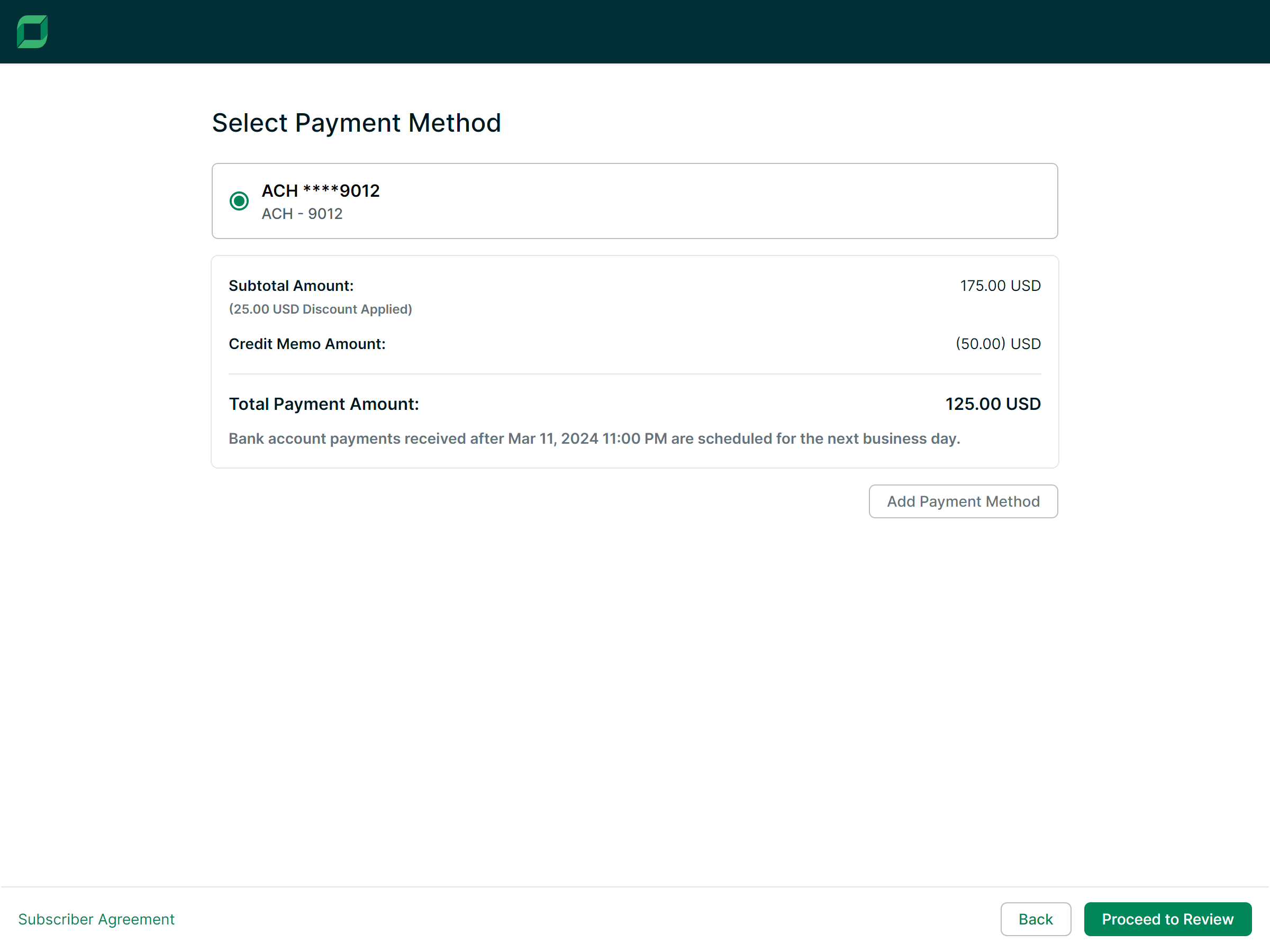
The Select a Payment Method page opens.
-
Select or Add your payment method.
-
Select Proceed to Review.
The Payment Review page opens.
- Select Authorize and Pay to complete payment.