

CreditSafe
This guide provides the information you need to configure CreditSafe for Billtrust's Credit application.
Prerequisites
- License: Customers must have their own license for CreditSafe. Billtrust is not a reseller.
- Credentials: Customers must supply their CreditSafe username and password
- Product Supported: Your customer must request that CreditSafe enable the “Connect API.”
Instructions
- Navigate to the External Provider Page in Credit.
- Login to Credit as an Admin or All Access user.
- Select System Settings.
- Navigate to View All Settings.
- Select External Provider Configuration and you’re ready to start.
- Select Add New Provider and select CreditSafe from the list of available providers.NOTE
If you don’t see CreditSafe, the contract has not been set up and you should contact Customer Support.
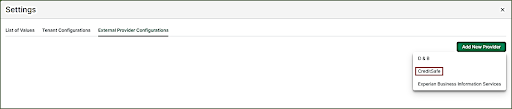
- Add Credentials once you have selected CreditSafe, you will be presented with the screen to enter credentials
- Click verify.NOTE
If the credentials have been entered incorrectly or if CreditSafe hasn’t enabled the Connect API yet, you will be presented with an invalid credentials message and will need to reenter the credentials or confirm that the CreditSafe Connect API is active.
-
Setup the country and the product.
- Search and Company tabs do not require set up and can be skipped.
- Select Credit Decision Data tab.
- Select system to pull data manually or automatically.
This page also shows the data points that are being retrieved from CreditSafe and displayed in the application.
NOTEIt is recommended to configure for manual data pulls initially to ensure that our customer is being charged by CreditSafe the way they expect to be charged.
-
Select Credit Profile Report tab to configure the report type and report format.
- Select Premier Profile.
-
Select PDF.
-
Select Save.
Retrieve data from CreditSafe
-
To retrieve data from CreditSafe:
- If the customer is set for automatic credit pulls, the data will be available on the credit app when the user opens it for review.
- If the customer is set for manual (recommended) credit pulls, the user will need to click the “Get Data” button to retrieve the data.
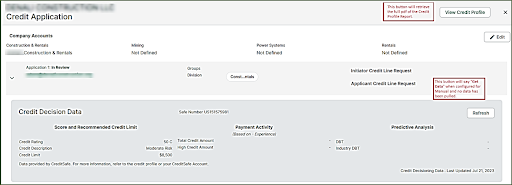
-
To retrieve a Credit Profile Report from CreditSafe, click on the “View Credit Profile” button and a pdf will be displayed in a new window.
-
Both the data and report can be refreshed at any time.
-
Once the application has been decisioned, the data cannot be refreshed anymore and a pdf version the credit report (at the time of decisioning) is saved to attachments in the customer view of the credit application.
For existing customers that have open applications (Initiated, In Process, In Review):
Only Credit Applications that are initiated after CreditSafe was implemented will automatically have the connect ID (Safe Number) available in the application so that credit data and the credit report can be pulled manually or automatically.
For open applications, the credit user will need to manually enter the connectID (Safe Number) into the credit application while reviewing so that they can manually pull credit data and/or reports.