

Use advanced columns in dynamic reports
Advanced columns allow you to create custom calculations and metrics that go beyond the standard fields in a dataset. They are particularly useful when you need to combine, transform, or calculate values from existing columns to generate insights that are not available by default.
For example, you can sum amounts from two different fields, calculate percentages, or apply formulas using constants and variables - giving you flexibility similar to spreadsheet functions.
Steps
- In Collections, select Reports → Dynamic reports.
- Select New report.
- Select the data type you want to work with. See Create Dynamic Reports for descriptions of each data type.
- Give the report an informative name.
- Drag the columns you want to use in your calculation from Available columns to the Selected columns frame.
Tip: If you are adding columns to use in a calculation but do not want them displayed in the report, hide them by hovering over the column and selecting the eye icon. Hidden columns are dimmed in the Selected columns frame but remain available for calculations.
- Select Advanced column. A dialog opens.
- Give your advanced column an informative name.
- Use the Layout dropdown to select the appropriate format for the calculated data - for example: exact amount, rounded amount, or percentage.
- Select the function you want to apply - for example: sum, multiply, or concatenate - and specify the variables (columns) or constants (numeric values) involved.
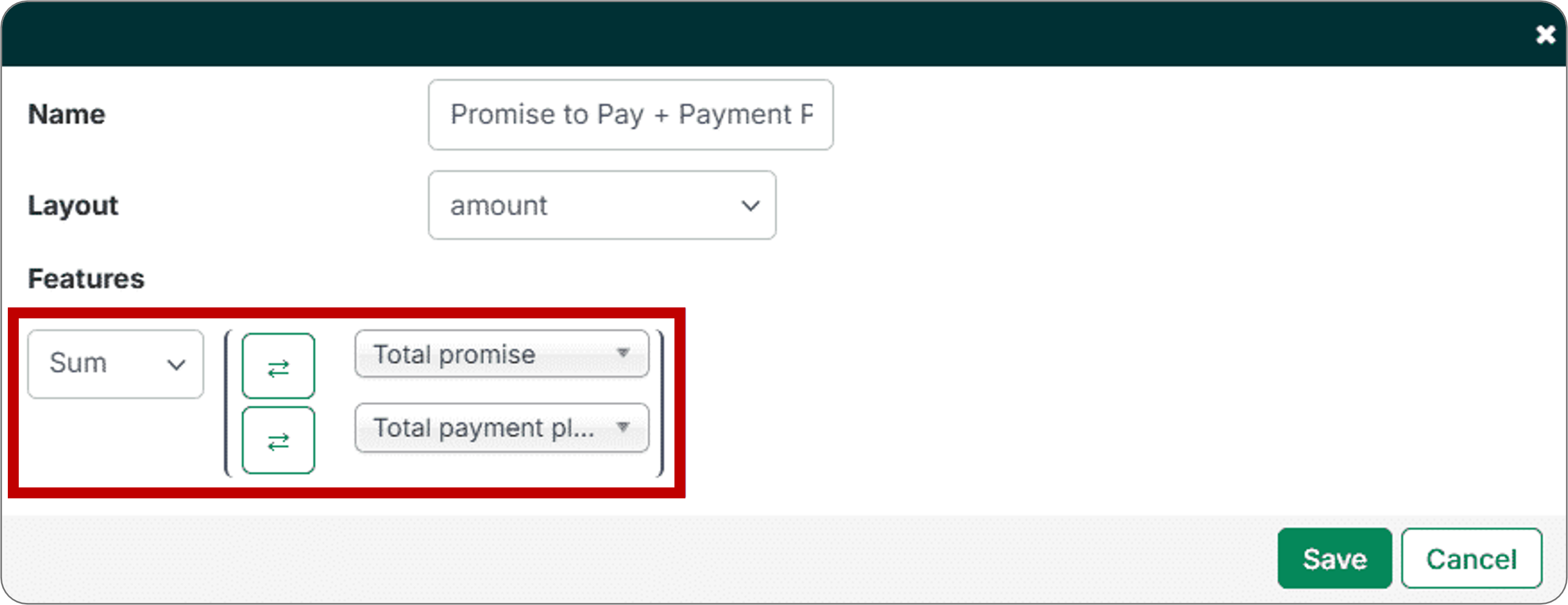
In this example, the sum function will add the values of the "Total promise" and "Total payment plan" columns. - Select Save and then run the report to ensure your calculation works as intended.
Related Articles
- Create Dynamic Reports
- Add Complex Filters to Dynamic Reports
- Manage Dynamic Reports
- Add Custom Fields to Reports
- Download Prebuilt Dynamic Reports
Need Help?
If an advanced column calculation is not returning expected results, confirm that the correct columns and function are selected and that the Layout format matches the data type of the result. Contact the Billtrust Support team for further assistance.