

Use the call processing page
The call processing page helps you manage your telephone list without losing time to context switching. Use embedded VOIP and agentic AI features to automate routine work and streamline call operations. The page is divided into six panels, each described below.
Contacts
Use this panel to manage contact information for account contacts or open new lines of communication.
- Select Edit or Delete to revise existing contact information, or select Add a new contact and complete the form.
- Select a contact’s email address to compose a new email. You can save drafts in progress and add attachments.
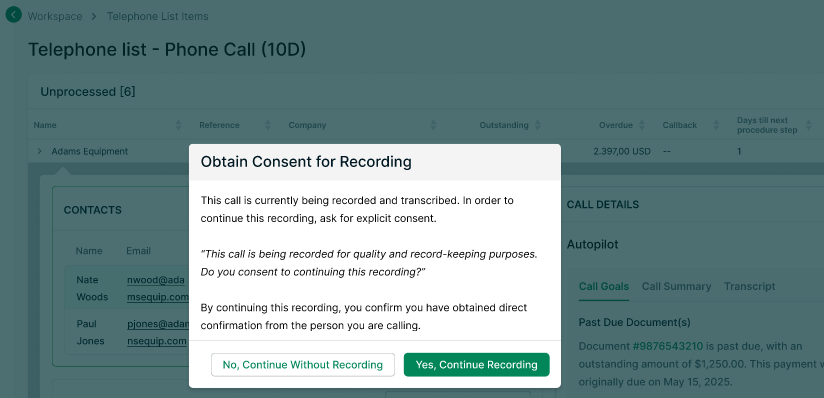
- Select a phone number to begin a VOIP call. If you choose to record the call, you must obtain consent by reading the suggested disclaimer.
- Select Yes to continue recording and transcribing the call.
- Select No to immediately stop recording.
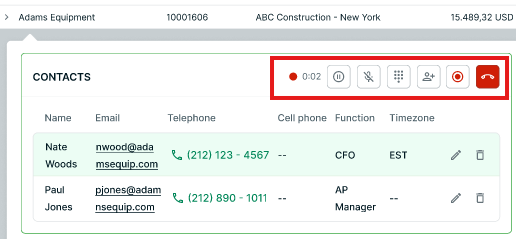
- Manage calls in progress using the Hold call, Mute, and Show keypad controls. When finished, select End call.
-
Manage calls in progress using the Hold call, Mute, and Show keypad controls. When finished, select End call.
Call Details
Use this panel to prepare for calls and document their outcomes.
- Call Goals gathers relevant background information such as overdue invoices, broken payment promises, and open disputes.
- Select Call Summary to read an AI-generated recap of the conversation with emphasis on action items and account contact commitments.
- Select Transcript to read or search an AI-powered transcription. Select Download full transcript to export a copy in TXT format.
- In the To-do pane, review suggested follow-up actions based on the call transcript - for example, log a dispute, update contact information, or record payment promises.
Note: You must record a phone call to use the AI features in the Call Details panel.
Overview
Reference important account information such as outstanding balance, overdue amount, procedure status, and payments in promise. Select Send account statement to send this information to the account contact via PDF, email, or SMS.
Timeline
Shows a history of actions taken on an account and the people who took those actions. Use the search field to locate particular entries on the timeline.
Documents
Displays an account’s open documents including status, invoice date and number, outstanding amount, days past due, and days in procedure. You can search the Documents table or filter by column attributes.
- Select icons in the View column to view documents.
- Select Pay to collect overdue amounts while the account contact is on the phone.
- Change a document’s status to reflect the outcome of the call. Available status options:Select the applicable status and enter the requested information.
Status Procedure Payment promise Dispute Dispute approval required Payment plan Outsourcing Contractual credit Put on hold Paid online
Conversation
After a call, use the Conversation log to record notes for future reference.
- Select No contact if you were unable to reach the account contact.
- Use the Call back on scheduler to add a follow-up task to your telephone list.
- Select Note code to add a user-defined code for internal classification — for example, to label conversations by priority or designate ones that require additional research.
- Select Process phone call to complete the item. Completed items are moved to Processed telephone list items.
Related Articles
- Process Telephone Lists in Collections
- Configure Agentic VOIP
- Worksheet Overview
- Process Workspace and Payment Plan Lists
- Create or Edit Tasks
- Review Tracking and Task Lists
Need Help?
If AI features in the Call Details panel are not available, confirm that call recording was enabled during the call. Contact the Billtrust Support team for further assistance.