

Edit the Collections dashboard layout
You can change the widgets that appear on your Collections dashboard and the order in which they appear. Widget arrangements are saved as named configurations you can create multiple configurations and switch between them on the dashboard.
Steps
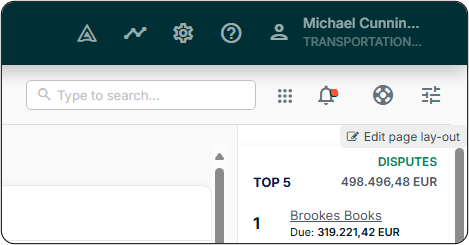
- Open the layout editor. On the Collections dashboard, select Edit page layout in the upper right corner.
- Choose your path: To edit an existing configuration:
- Select Edit next to the configuration you want to change.
- Select Create new configuration.
- Enter a name for the new configuration.
- Add a widget. Select Add new widget, then select a widget from the menu.
- Position the widget. Drag the widget to an empty space on the layout page.
- Repeat steps 3 and 4 until the layout is configured to your satisfaction.
- Select Save configuration.
Related Articles
Need Help?
If the Edit page layout option is not visible, confirm that your account has the appropriate permissions to edit the dashboard layout. Contact the Billtrust Support team for further assistance.